Configuring Port Forwarding
Port forwarding enables you to expose one or more ports of a cloud desktop to your local network or the internet in Portugal. This functionality is frequently used with Remote Desktop Protocol.
The capability is available for DaDesktop Course machines (which require a private server), DaDesktop For Work, and Standalone machines. Please note that the interface may appear slightly different depending on the machine type.
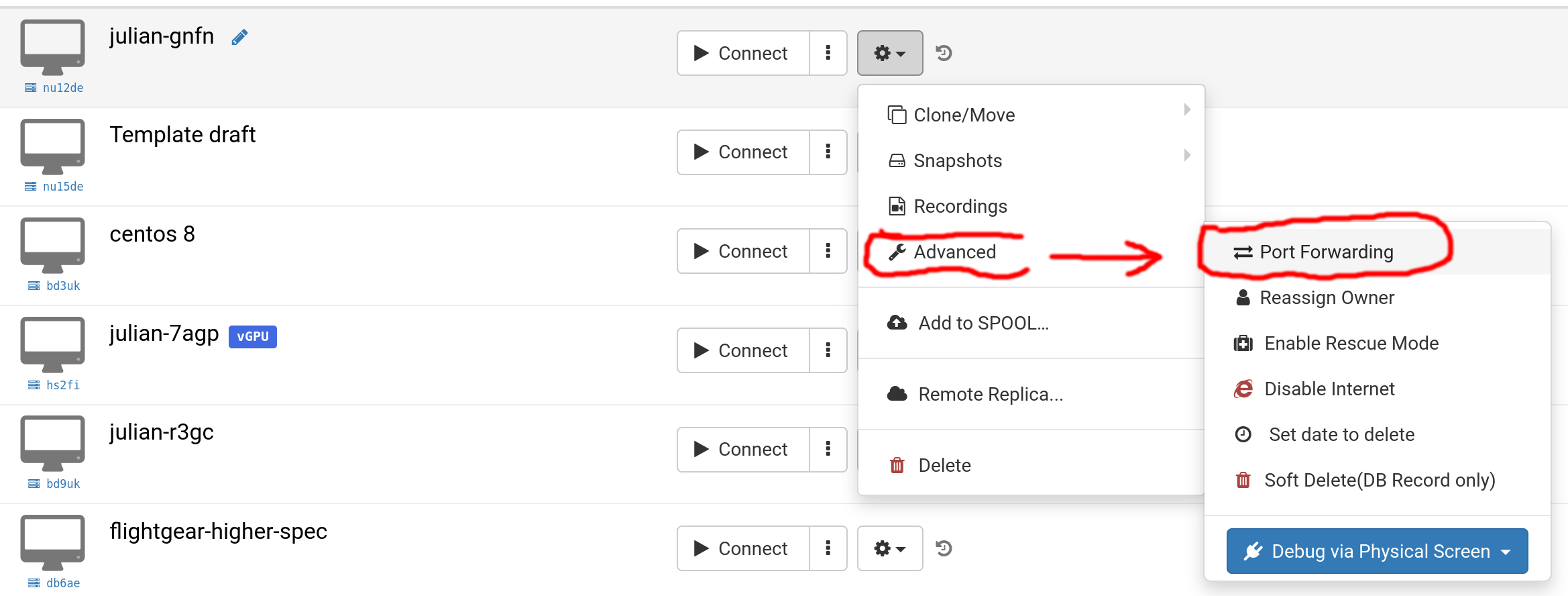
Choose 'Advanced' and then 'Port Forwarding'.
Port forwarding can be configured using either automatic or manual allocation. With automatic allocation, the next available port on the server is used. Generally, auto allocation is recommended for simplicity, but manual allocation allows you to pick each external port from the range 10000-65500 if required. Any previously added manual port forwards are retained and can be updated as needed.
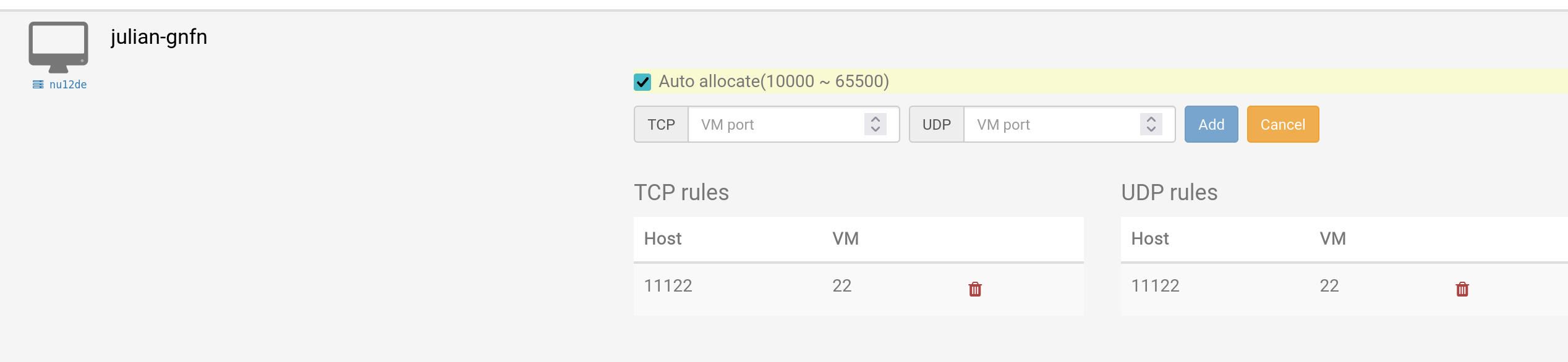
Auto Allocation
This screenshot illustrates auto allocation, including a previously set manual port forward that maps host port 11122 to VM port 22.
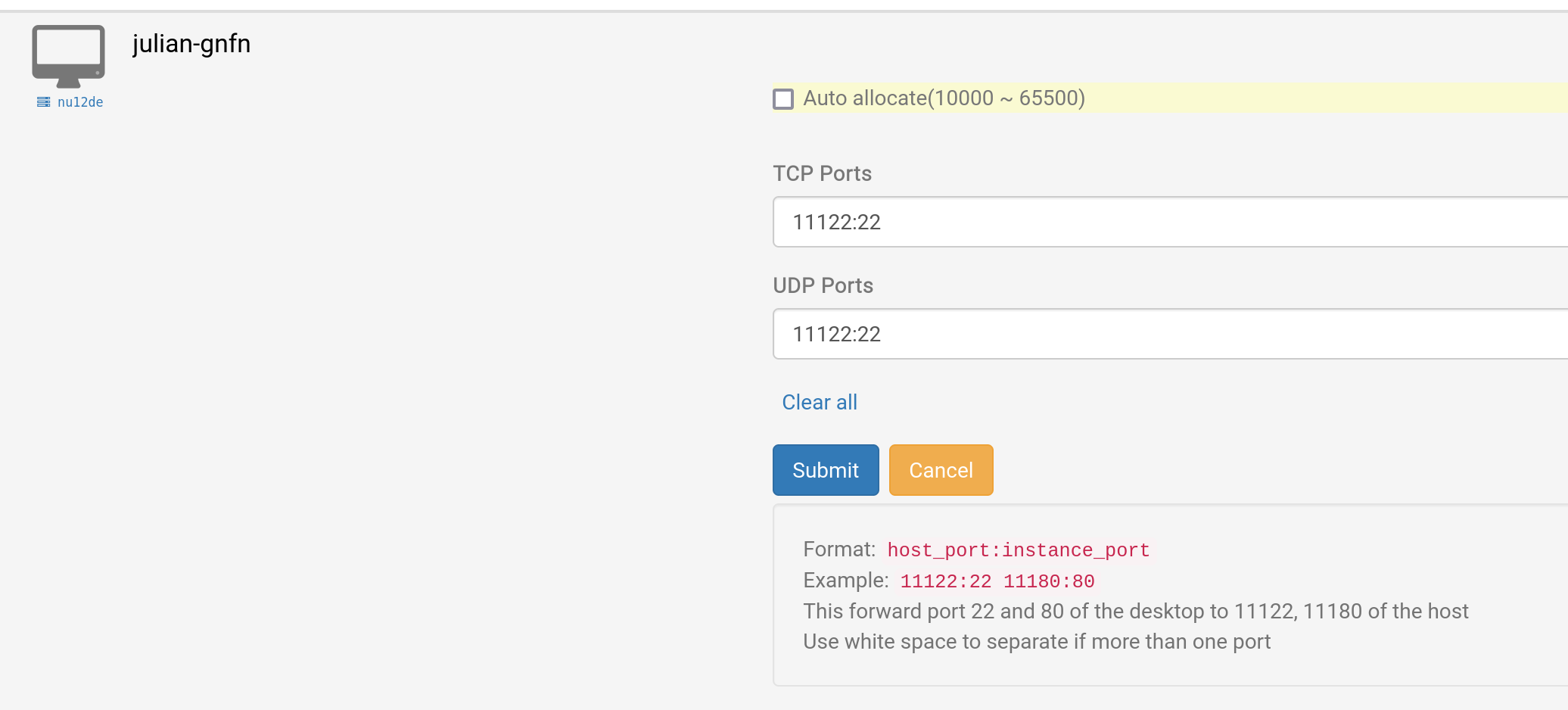
Manual Allocation
This example demonstrates forwarding port 11122 for both TCP and UDP traffic to the cloud desktop VM’s port 22, typically used for SSH. If necessary, you can select different UDP and TCP ports.
Example for Windows RDP
This scenario employs the manual allocation approach, though auto allocation is naturally also an option.
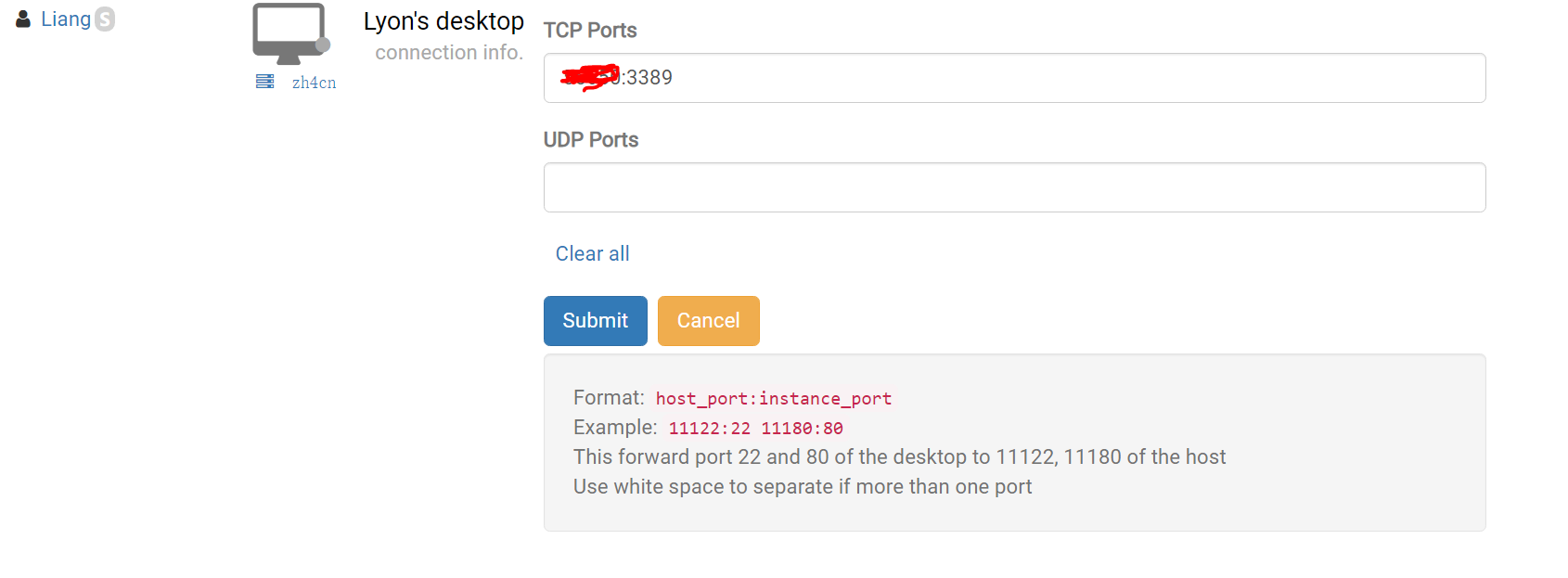
1. Locate your DaDesktop desktop, select “Port forwarding”, and configure the TCP ports used for the remote connection. This consists of your external port number followed by 3389 (e.g., 66666:3389). Remember your port number; if you lose it, you can revisit the Port forwarding screen later.
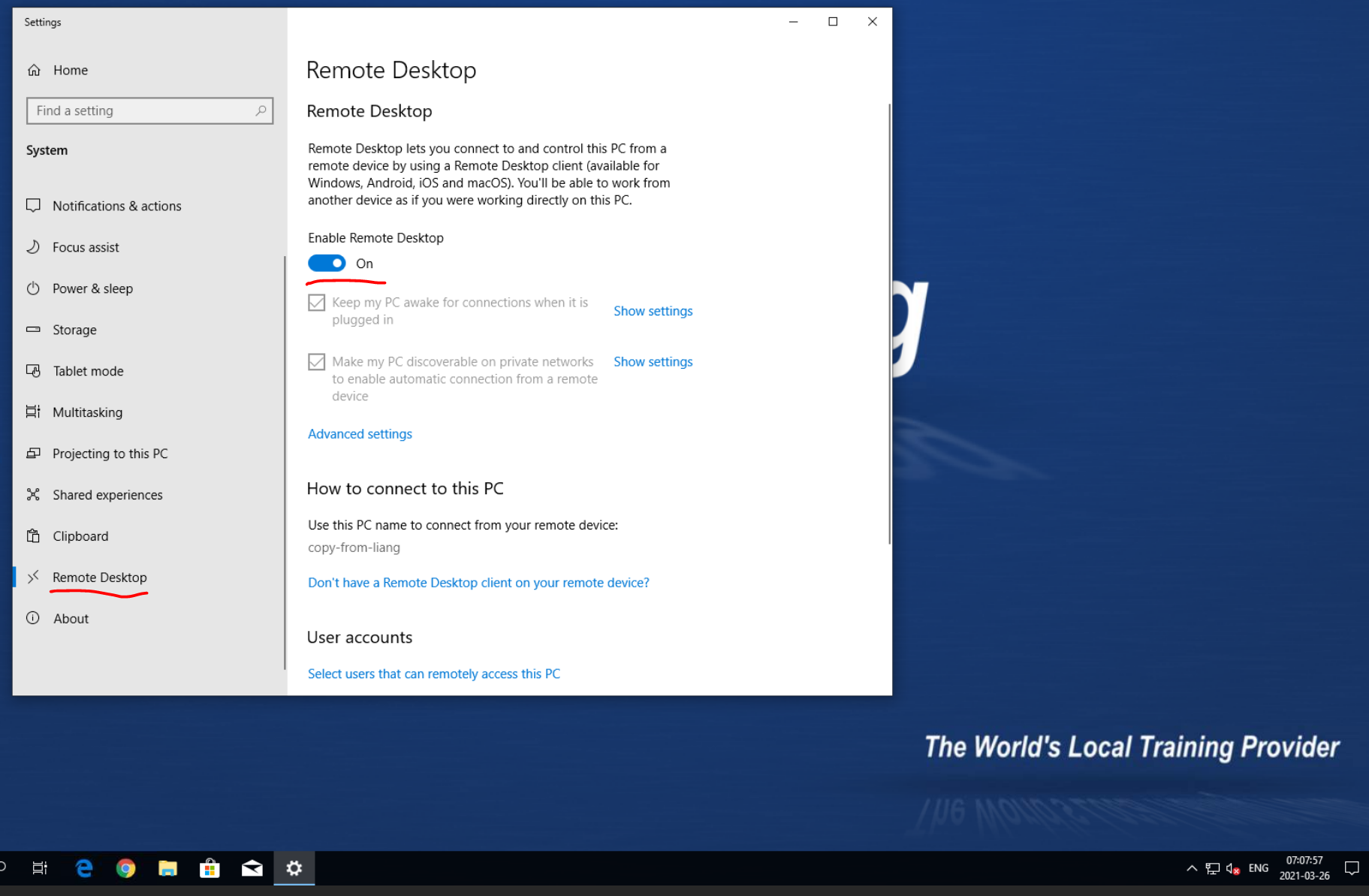
2. Submit the configuration and create a password inside your Windows DD machine, then click “Enable Remote Desktop”.
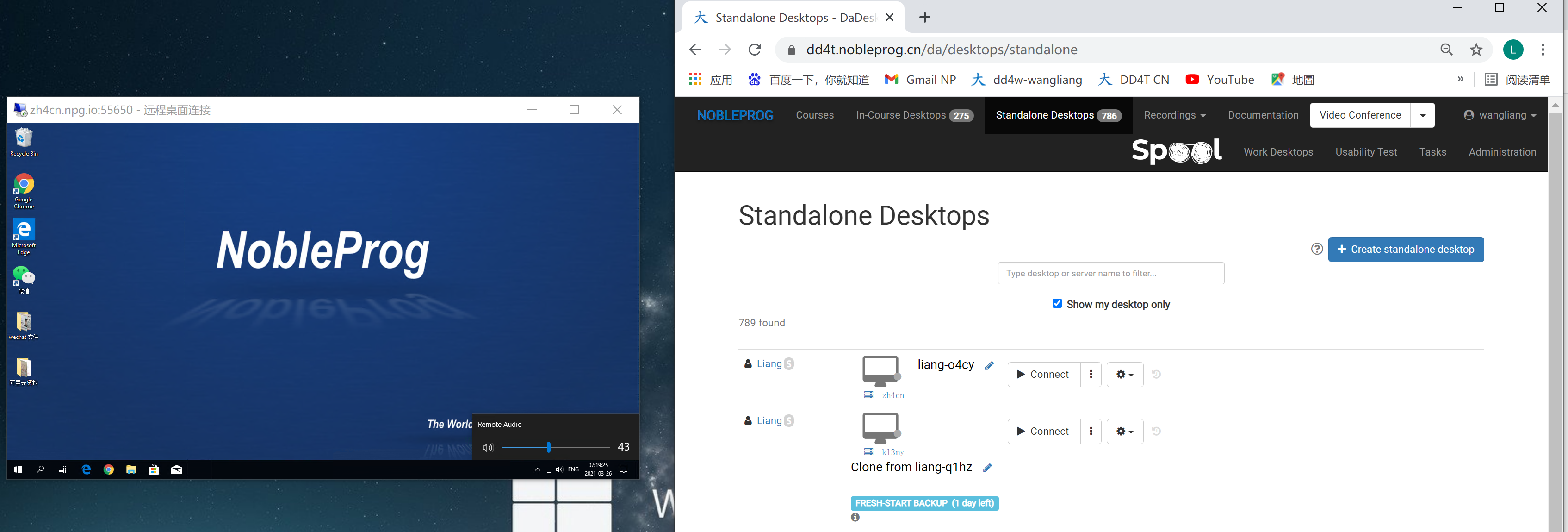
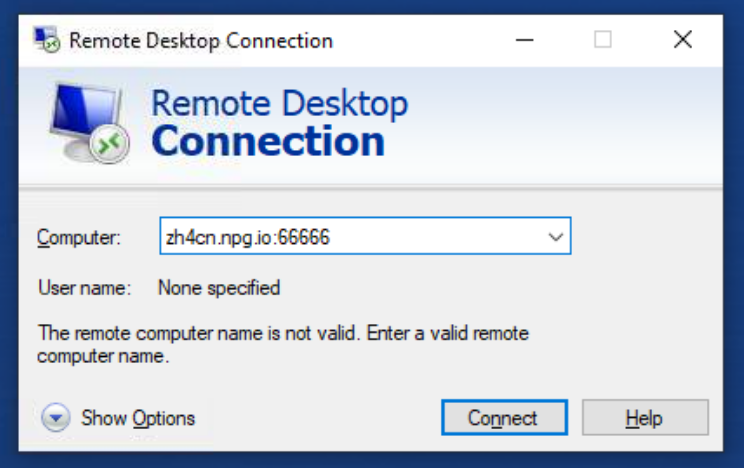
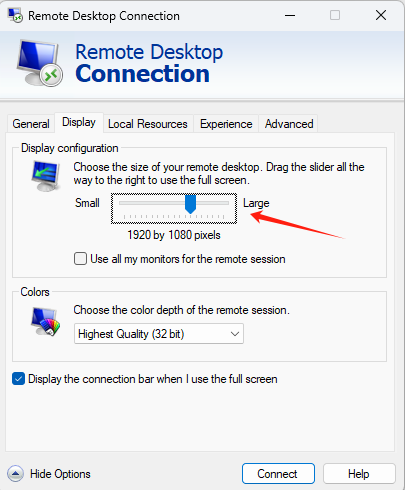
3. On your Windows device, launch Remote Desktop and enter the server name followed by the TCP port (for instance, I’m using zh4cn, so the address is zh4cn.npg.io:xxxxx). Under ‘Show options,’ you can also adjust the display resolution of the remote desktop window.
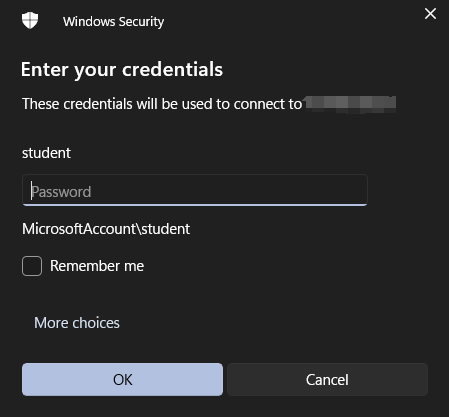
3.1 When logging into your DaDesktop remote desktop, you’ll first need to reset your username and password within the machine. Then proceed to connect to the remote desktop.
“You should reset your username and password in the machine first.”
Then connect the remote desktop.
4. You can then enjoy a remote desktop session that uses the DD template and your own device’s sound card, making it easy to copy, paste, and output documents. (The small window on the left shows the DD remote desktop with audio.)