How to Use DaDesktop as a Participant
Objective
This guide is designed for participants (students) who want to join a course delivered on DaDesktop.
Overview of DaDesktop
DaDesktop is a cloud platform built specifically for IT training. It serves both instructors and learners, offering virtual desktops powered by the innovative DaDesktop® technology. During sessions, every participant gets their own complete online desktop to work through exercises, all under the trainer’s supervision.
It’s made up of three main components:
- Management Console – a web interface for system administration, like launching and shutting down cloud desktops.
- Training Room – a collaborative area supporting remote desktop sharing, audio, chat, and lesson recording.
-
Remote Desktop – a virtual machine (Windows or Linux), one per user.
Requirements
To join from your workplace or home, you’ll need:
- A computer (PC or laptop) with a stable internet connection (at least 10 Mbit/s download and 1 Mbit/s upload). Windows, Mac, or Linux machines are supported.
- Chrome or Firefox web browser
- A quality microphone or headset (a telephone can be used as a last resort, though it’s not ideal)
-
A quiet environment free from distractions and background noise (a café won’t work)
Recommendations:
- Webcam
- Second monitor – use one screen to follow the trainer and the other for your DaDesktop virtual machine labs.
- Turn off any VPN before joining the course
- If possible, disable any security software that might interfere with the network connection
- Whenever you can, use a wired Ethernet connection. If you’re on Wi‑Fi, run a speed test (e.g., speedtest.net) beforehand to check your connection.
You might want to test joining your course and explore the DaDesktop virtual classroom ahead of time. Keep in mind that before the course start date, desktop access is limited to 15 minutes per day.
Course Access
Please be aware that access to your course is limited to a 15‑minute window outside of course days.
On scheduled course days, you can access it throughout the day. Previously, this was only allowed for about an hour before the course began.
Keep Desktop after Course finishes
A standout benefit of DaDesktop is that participants can keep using their virtual machine after the course ends.
Check the link above for complete instructions.
Joining a Course
Open the link provided by the course coordinator (e.g., dd4t.dadesktop.com/da/join/xxxxx).
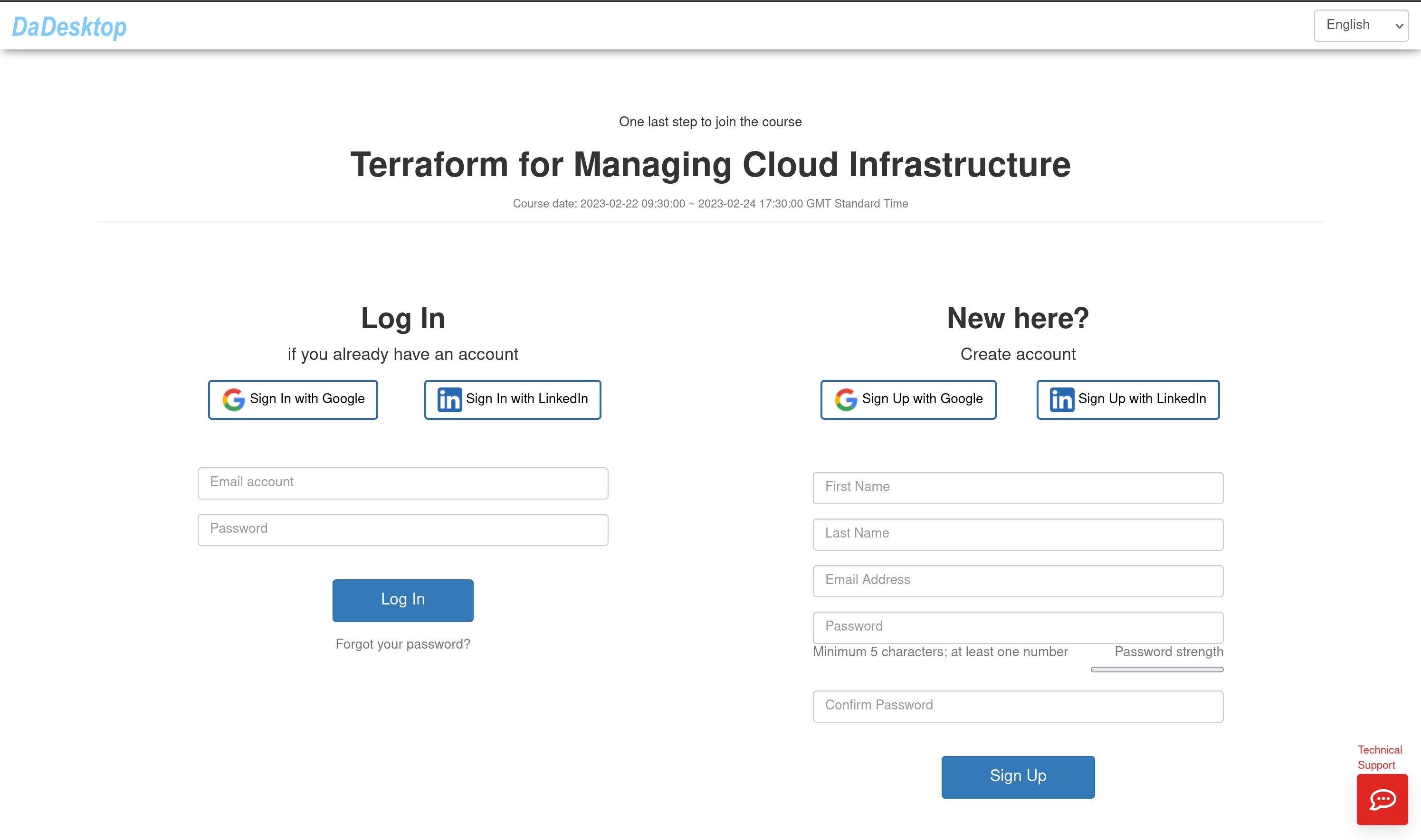
Image 01
If you’re a first time user, fill in your details under “Account” and click “Sign Up”. You can sign up via the form or by using your Google or LinkedIn account.
If you already have an account, just log in.
You’ll then be taken to the Management Console for your course.
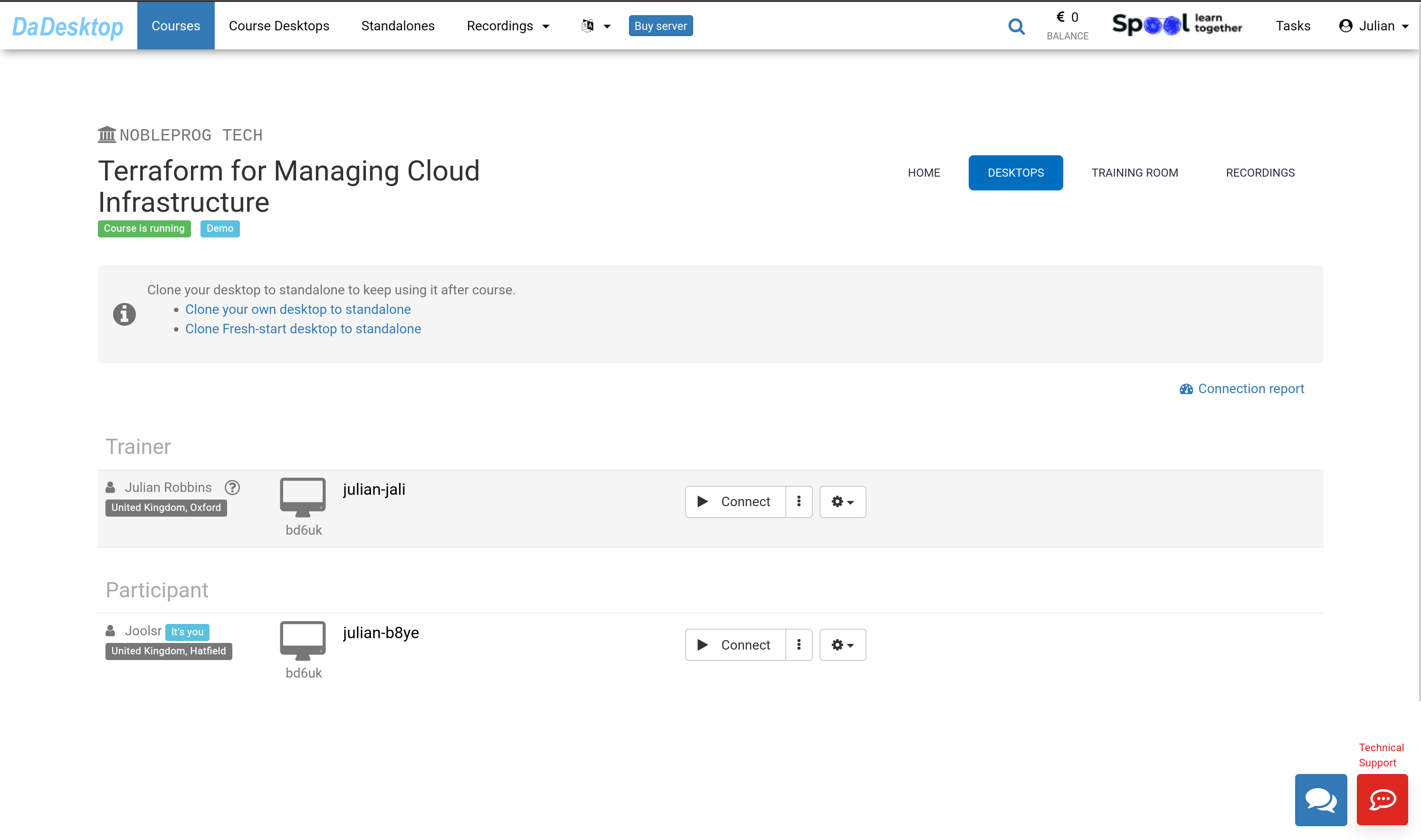
Image 02
Using the Management Console
Select the “TRAINING ROOM” tab.
Then click the “Join Training Room” button.
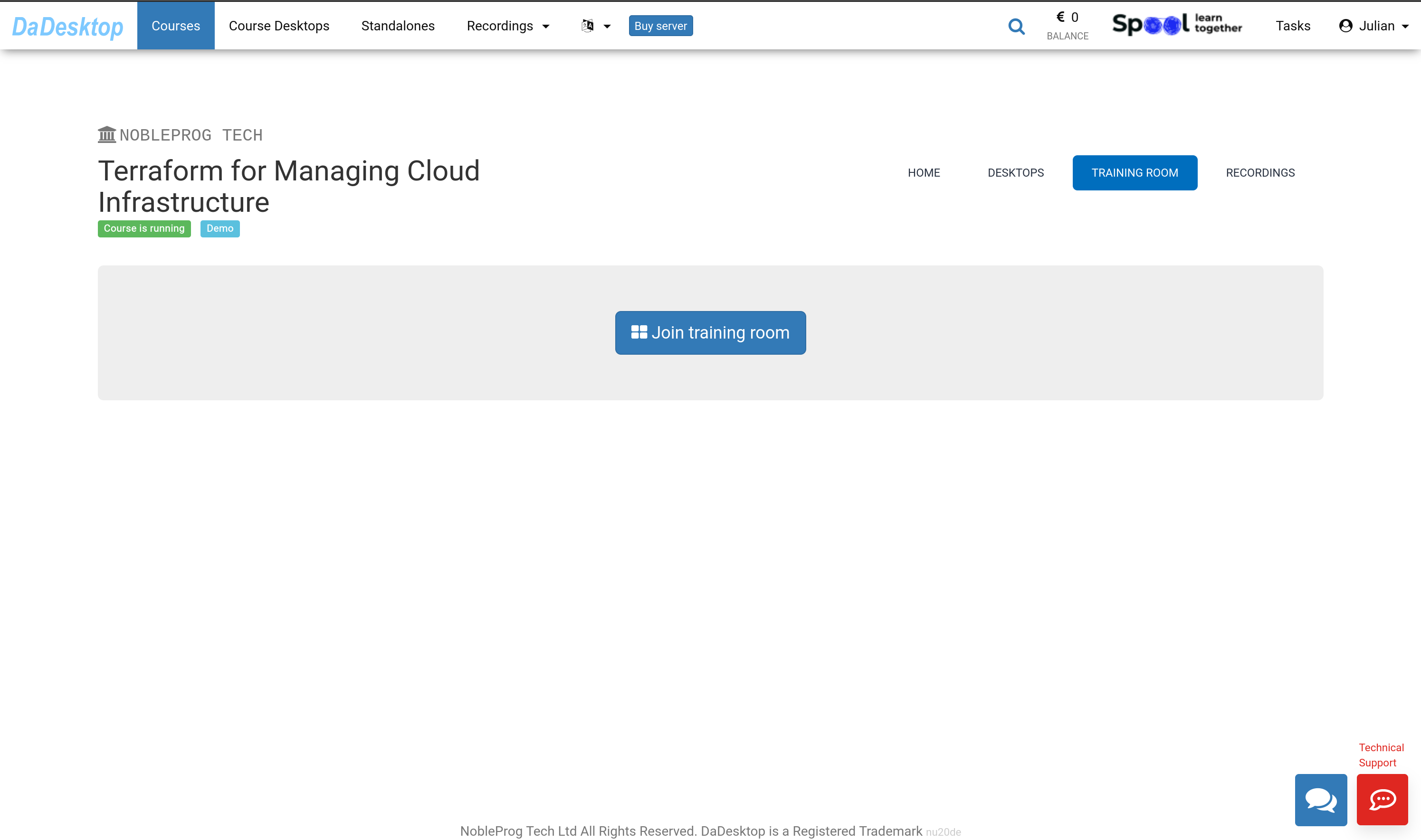
Image 03
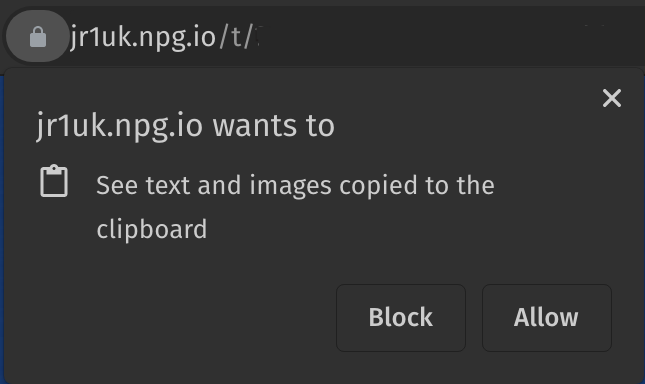
The Virtual Training Room opens in a new browser window. A pop‑up will ask for permission to copy items to the clipboard – click “Allow”.
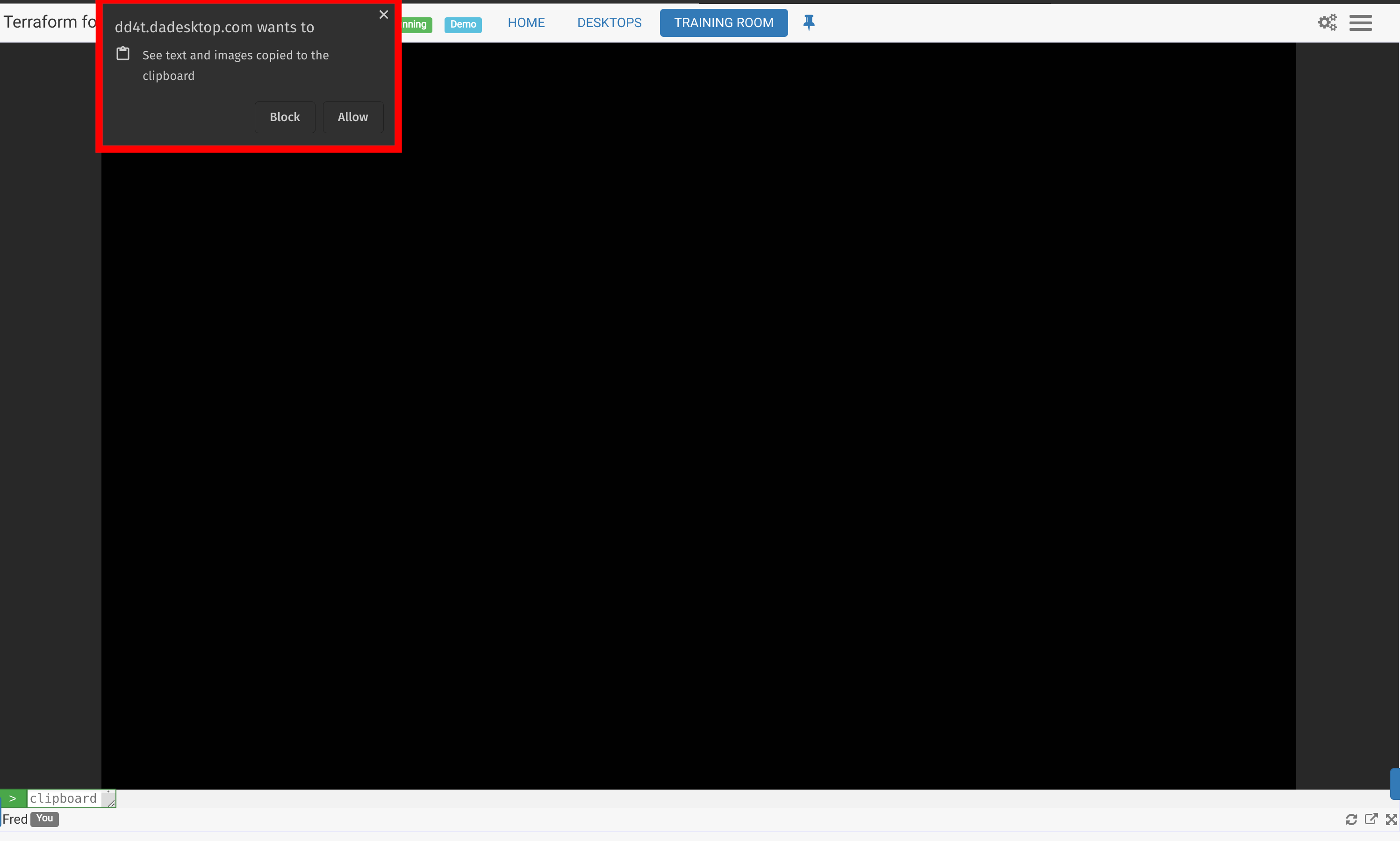
Image 04
Navigating the Training Room as a Participant
The Training Room appears with a tab at the top of the screen that contains links back to the course.
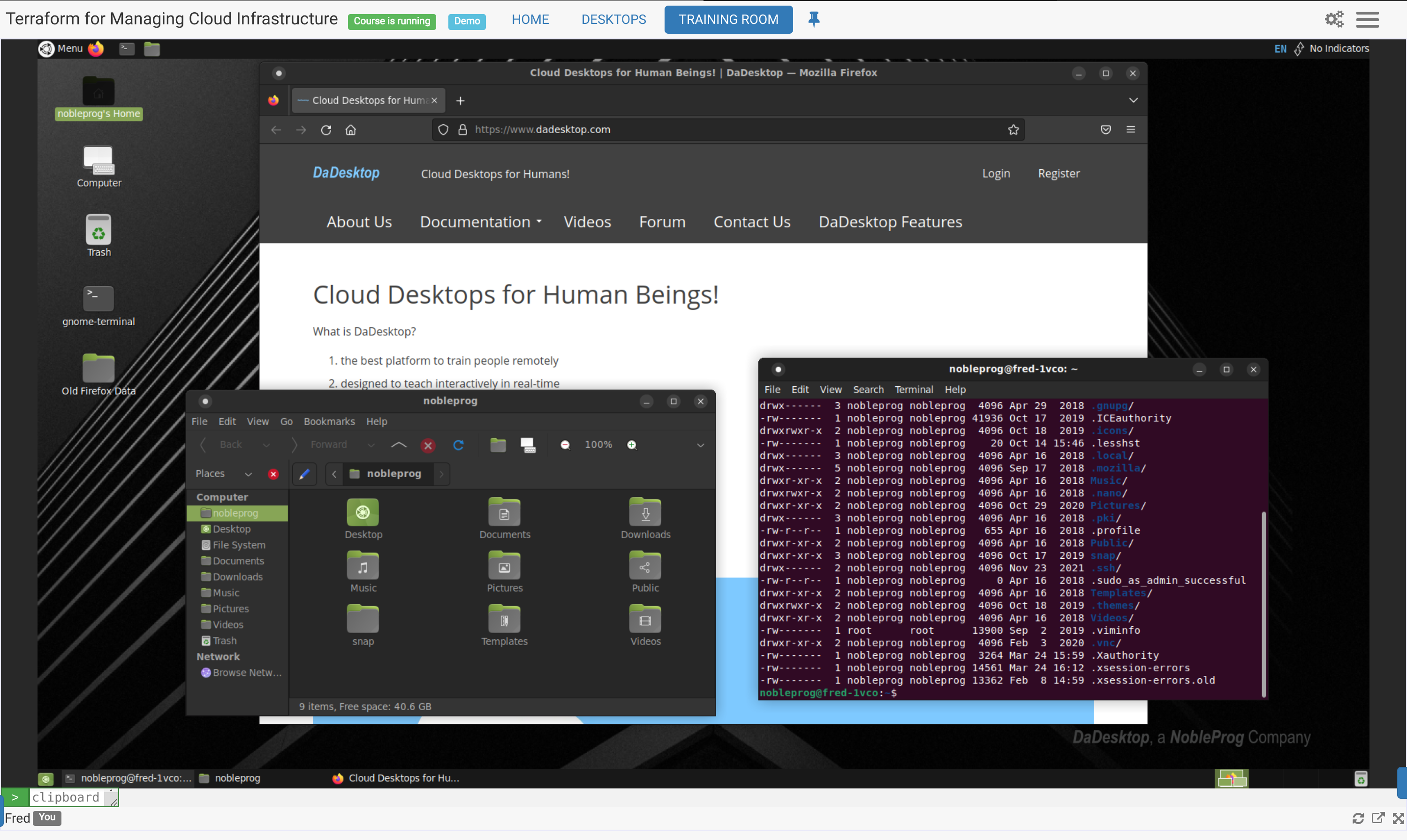
Image 05
Controls available at bottom of the screen
- You can ‘pop out’ the display to another monitor if you need to; you can also maximise the browser window to full screen.
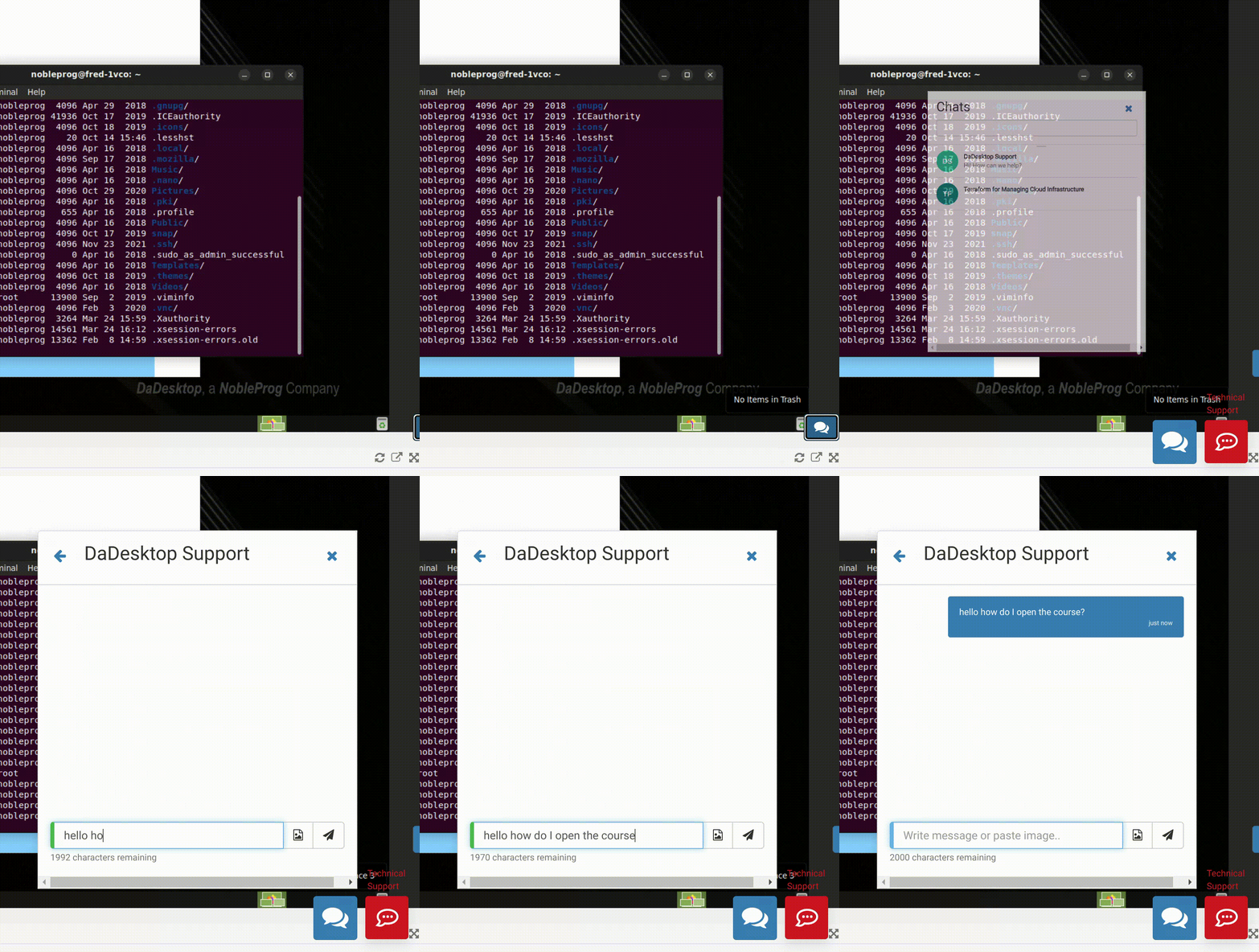
- Additionally, a small blue toggle at the bottom‑right lets you open the DaDesktop support chat whenever you need help.
Using the new Clipboard function
 To transfer text—like web links or commands—from your own machine into the Virtual Machine, we rely on the ‘Clipboard’.
Whenever you connect to your Online Course or Stand‑alone Desktop, a pop‑up like the one shown here will appear. Click ‘Allow’. Please note that clipboard copying of images is not supported in DaDesktop at this time.
Image 06
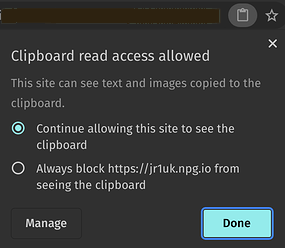 Clicking the small clipboard icon in the address bar lets you adjust the clipboard permissions for this site.
Usage
- On Windows and Linux virtual desktops, use the standard copy and paste commands from your PC: Ctrl‑C and Ctrl‑V.
- On a Mac host, copy as usual and then press Shift + Ctrl + V, or click the middle mouse button, to paste.
Image 07
Please reach out to us if you need any additional help with this feature.
Original Clipboard (to be used only for incompatible browsers for new Clipboard) ie IE, or as fallback.
- To copy text from your own machine to the DaDesktop virtual machine, type or paste it into the clipboard area at the bottom left of the screen.
-
On the virtual machine, click the middle mouse button (or mouse wheel) to paste the clipboard contents onto the desktop. This works wherever text can be entered within DaDesktop, assuming you’re using the standard Linux virtual machine.
Mac users: use Command‑C (or ⌘‑C) to copy and Command‑V (or ⌘‑V) to paste. After pasting into the dd4t clipboard, you’ll use Control‑X, Control‑C, and Control‑V for cut, copy, and paste inside dd4t. - If you’re using the Windows virtual machine, right‑click to paste from the clipboard.
To resize the clipboard area, click the green‑and‑white arrow icon at the bottom left of the screen.
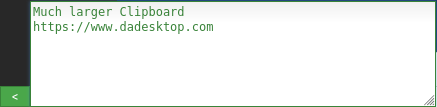

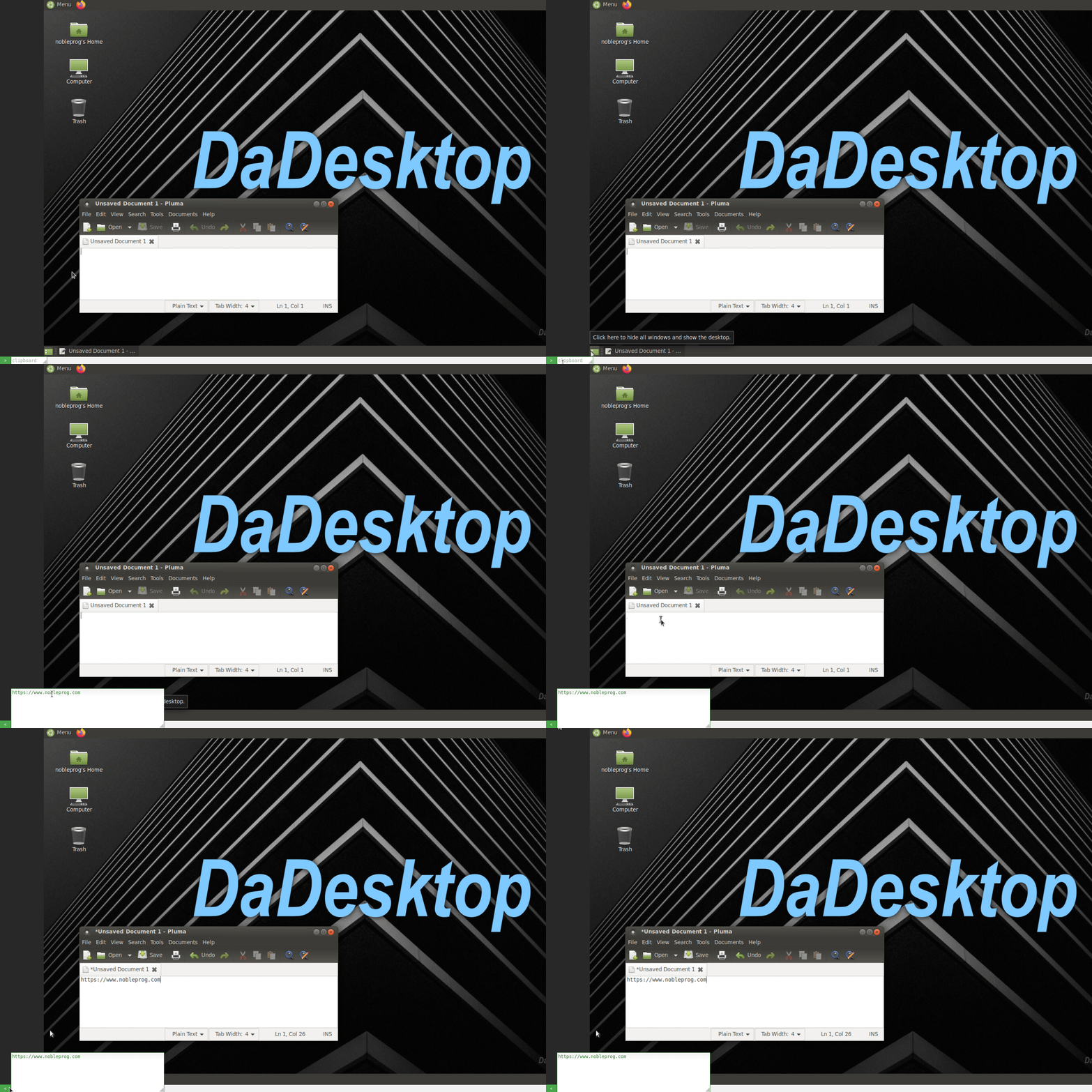
Image 08
Using the mouse in a multi-user scenario
When more than one person is connected to the same desktop, the username of whoever is controlling the mouse now appears next to the cursor. This is particularly helpful during collaborative work or training sessions where control of the mouse may switch between users.
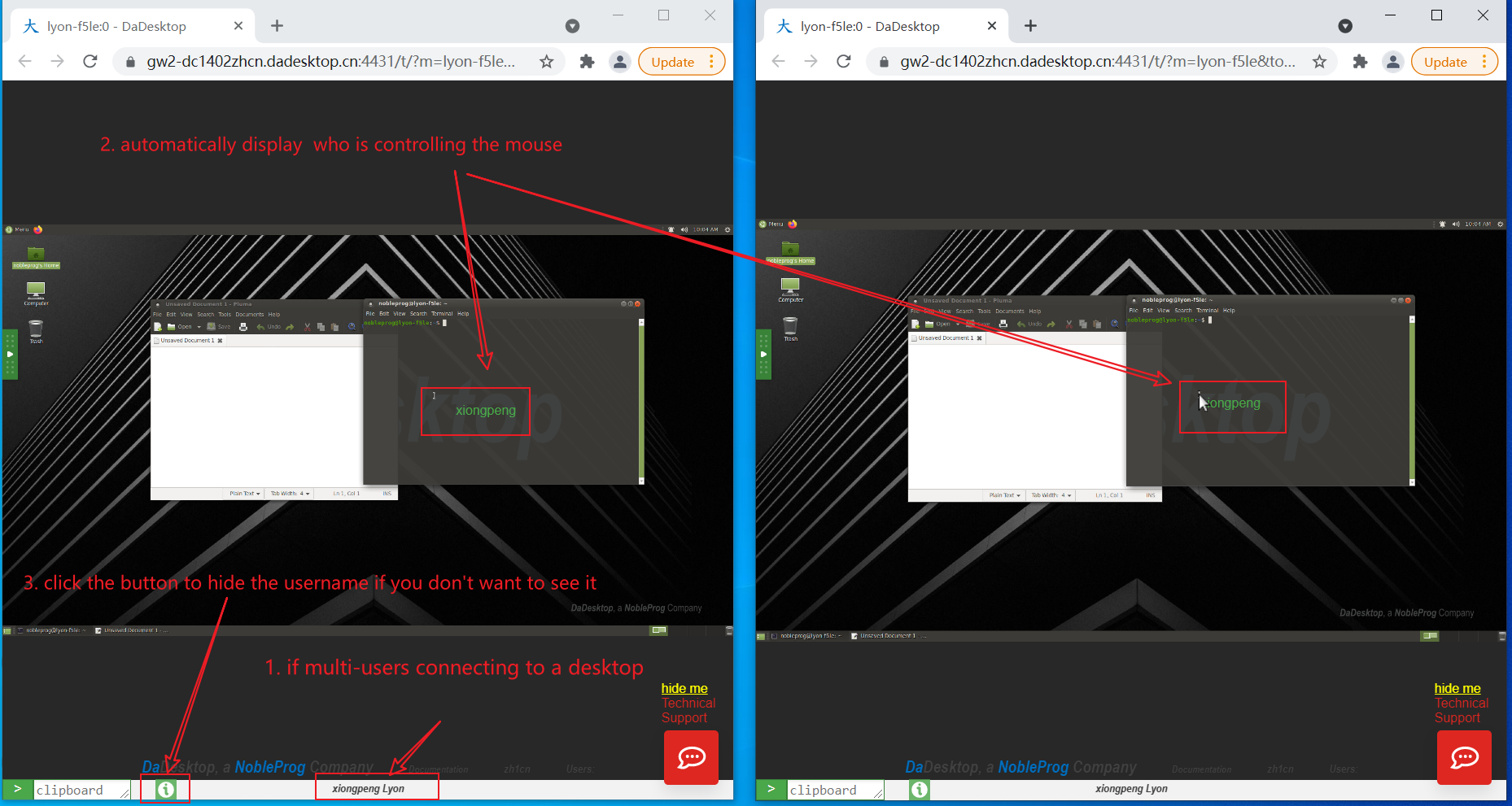
Image 09
If multiple users are connected, their usernames are displayed in the centre‑bottom area of the screen.
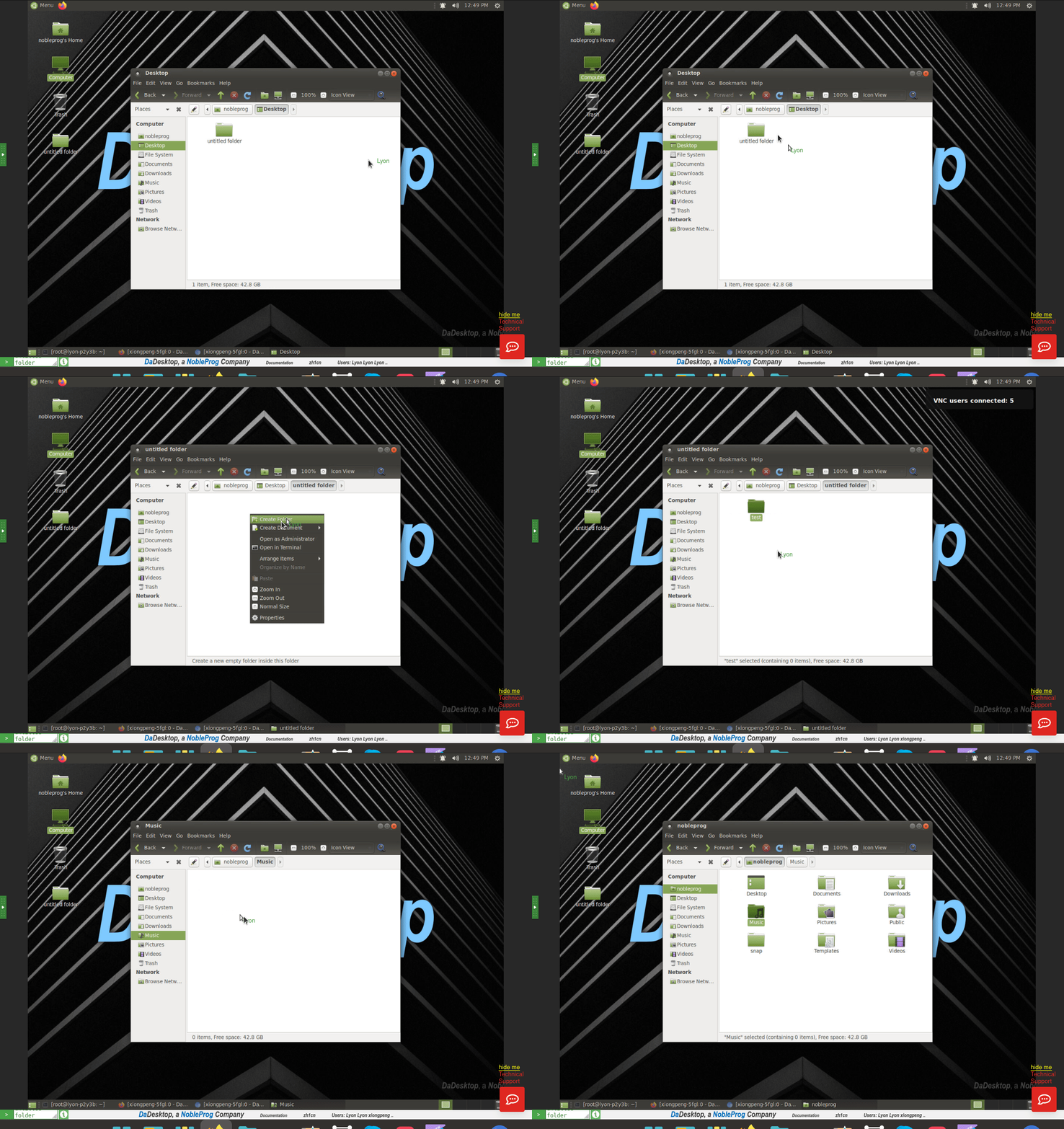
Image 10
You can turn this feature on or off by clicking the green ‘Info’ button at the bottom of the screen.