Recycle Bin
Once a course finishes, all associated machines—including Fresh Start, the Trainer's, and every participant's—are deleted after a brief period.
To address this, a recovery feature was introduced: machines can be retrieved from the 'Recycle Bin' for some time after their removal from a course. The restoration window varies depending on several factors like server disk space and course activity, and isn't fixed. However, we would expect machines to typically remain recoverable for at least a couple of months after a course concludes here in Portugal.
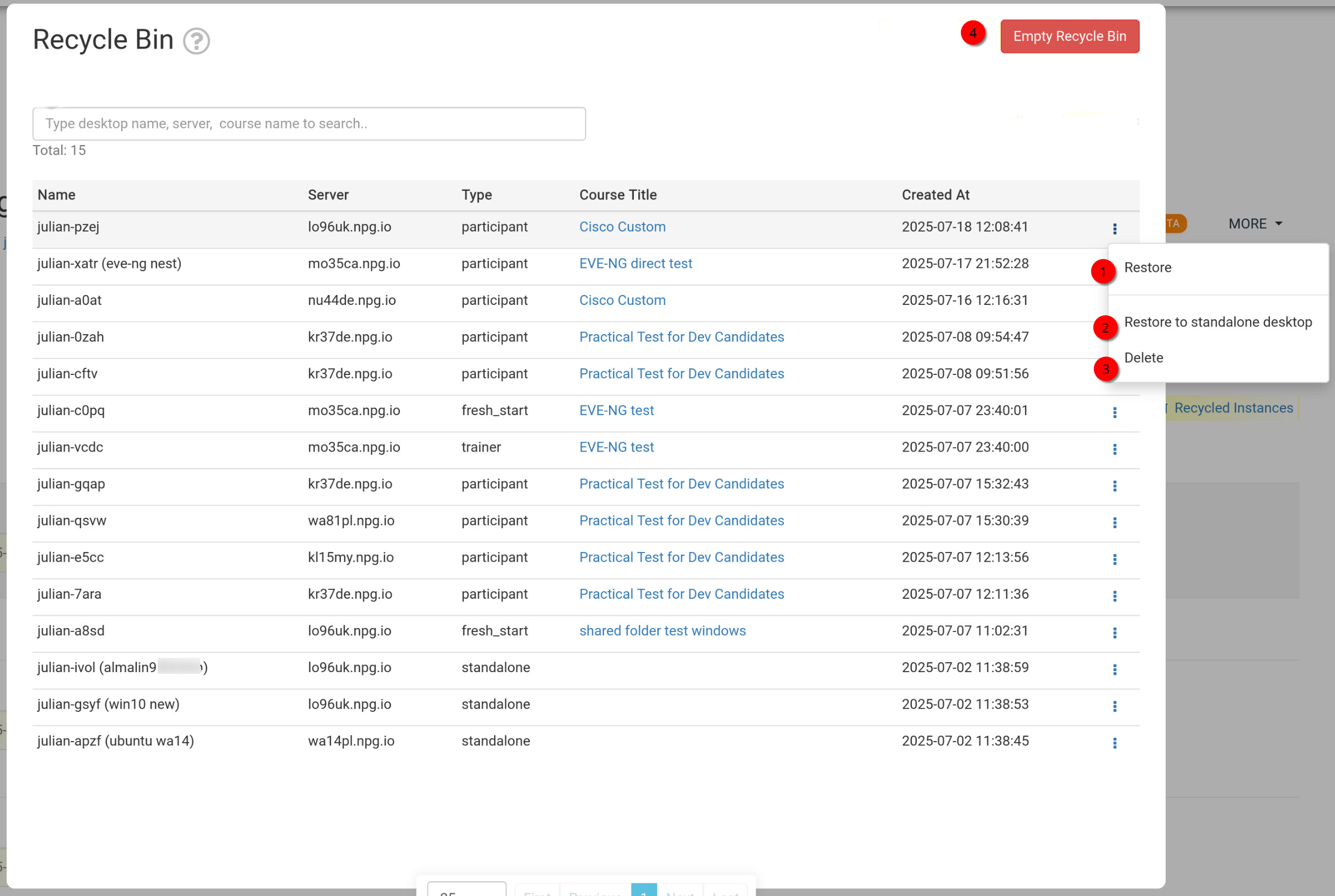
Every machine can be Restored directly to its original course, provided the course is still active; otherwise, it can be Restored to a Standalone Desktop, or if you’d rather, Deleted permanently.
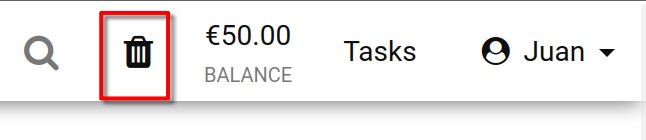
You can check your Recycle Bin status by glancing at its icon. A black icon means restorable machines are present; a greyed-out icon indicates none are available for recovery.
Additionally, you can search through the bin’s contents using the machine name, server name, or course name.
How to Restore or Permanently Remove Machines from the Recycle Bin
- Restore – Select this to return a machine that was removed from a course back to its originating course. If the course has already ended, restoration to that course isn’t possible; you can only recover it as a Standalone machine (see the next option).
- Restore to Standalone Desktop – Choose this when the original course is no longer available. A standalone recovery offers greater flexibility, keeping the machine for as long as you need.
- Delete – Use this to permanently remove a machine from the Recycle Bin. Note that once deleted, the machine cannot be retrieved.
- Empty Recycle Bin – Clicking the red Empty Recycle Bin button will erase all machines in the bin, making them unrecoverable.