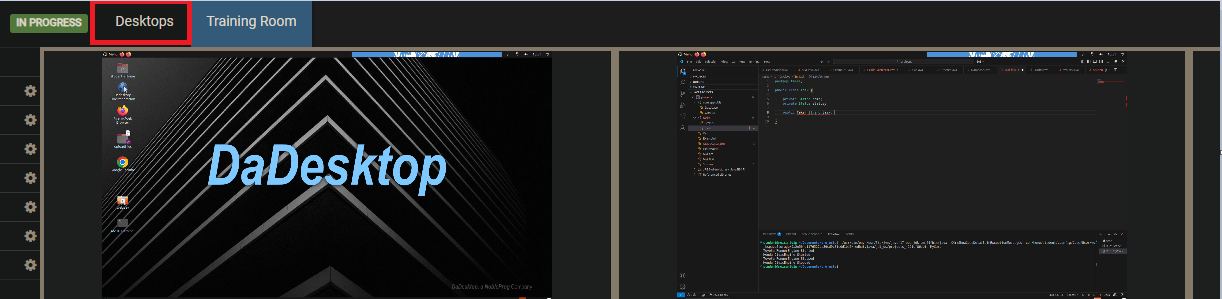
Training Room Display
The Training Room provides a hassle-free way to join a course.
With it, users can:
- Manage their own virtual desktops (instructors can also take control of participants' desktops)
- Watch the trainer's desktop in a grid or side-by-side layout
- Capture their desktop activity
- Detach the desktop into a separate browser window or another monitor, as preferred
- Engage in chat
-
Access training materials
Everything happens within the browser. Participants are taken straight to the Training Room by default upon joining, simplifying the experience for newcomers.
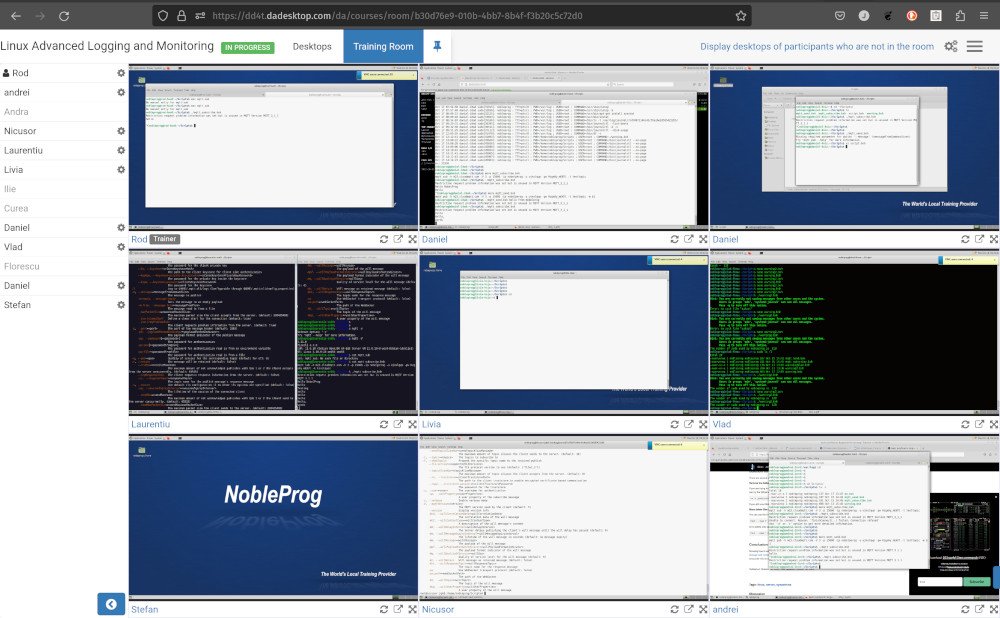
Trainers can additionally view all participant machines simultaneously and interact with any of them, for instance to assist someone struggling or falling behind. This unmatched ability to observe every student desktop at once greatly helps instructors recreate a traditional classroom atmosphere.
Training Room Display (Instructor's View)
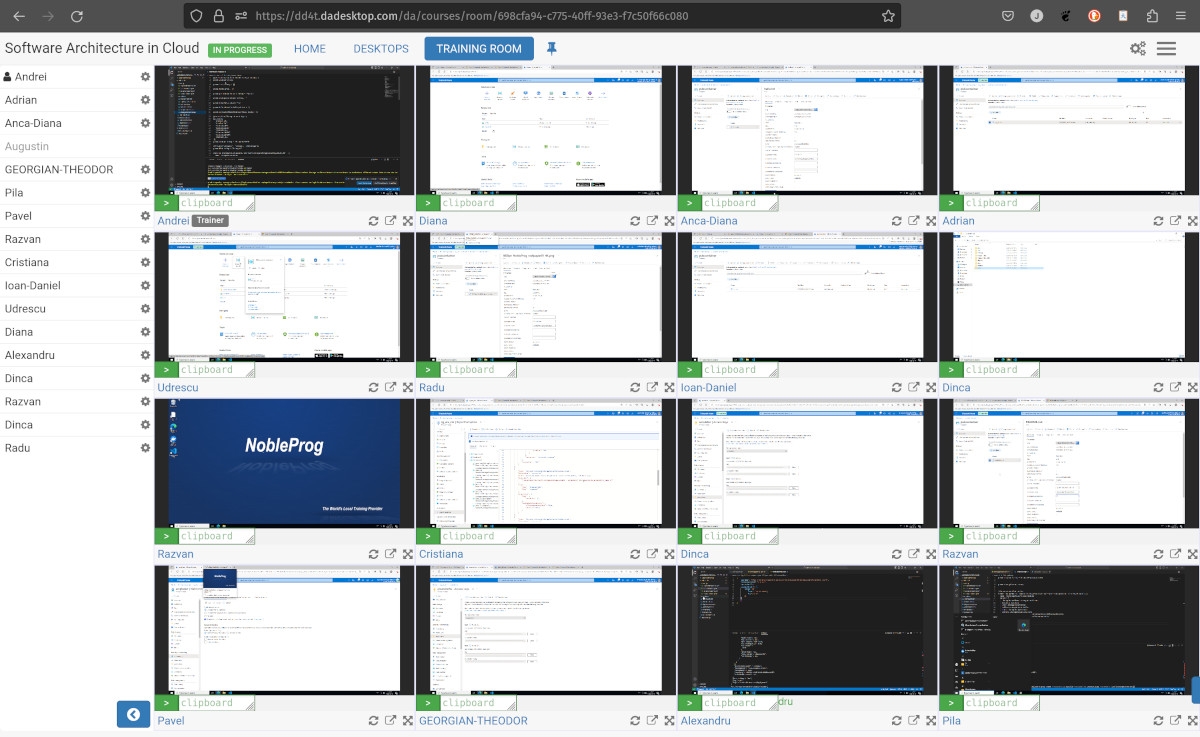
Training Room display featuring 16 participants (trainer only)
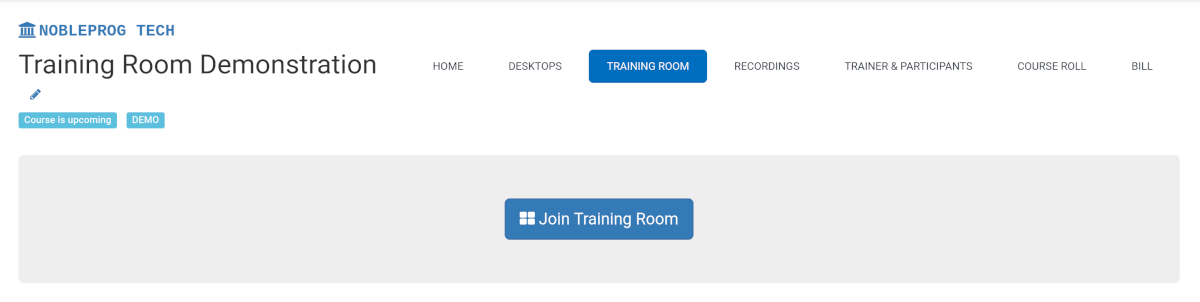
Accessing the Training Room
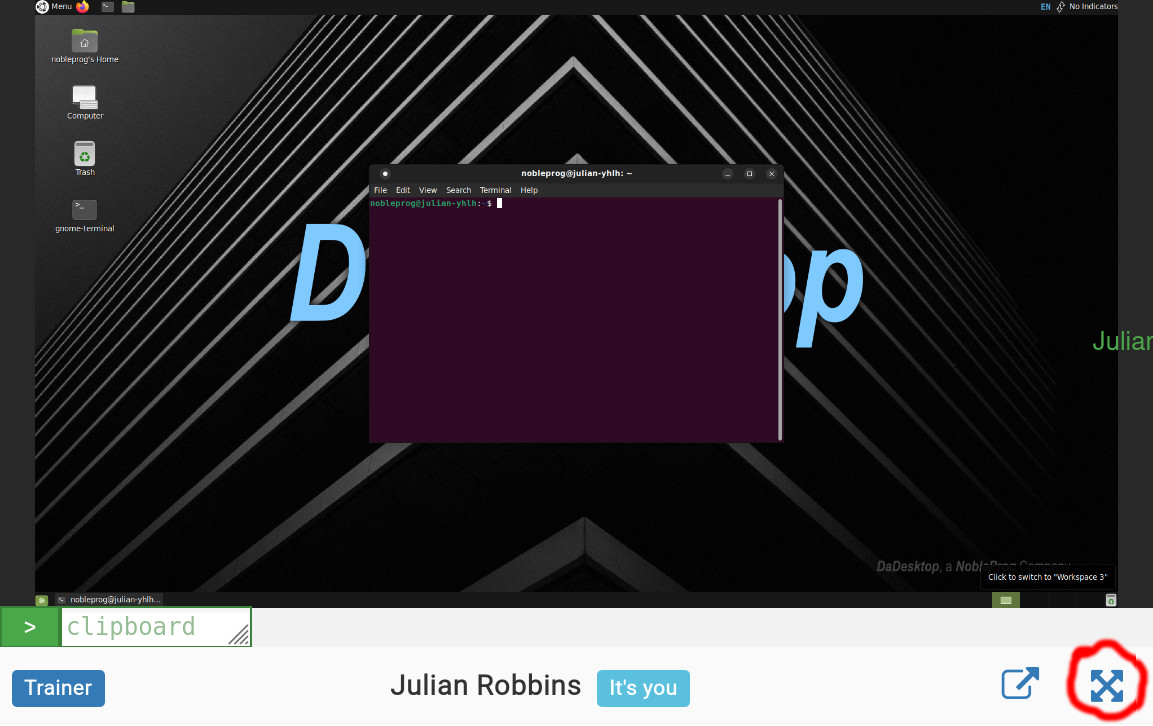
Maximizing the Window
Exiting the Training Room Display
Although it's not the most obvious method, leaving the Training Room display simply involves clicking the `Desktop` tab once more; this returns you to the main Training page.