My Account
Several account settings can be customized by each user.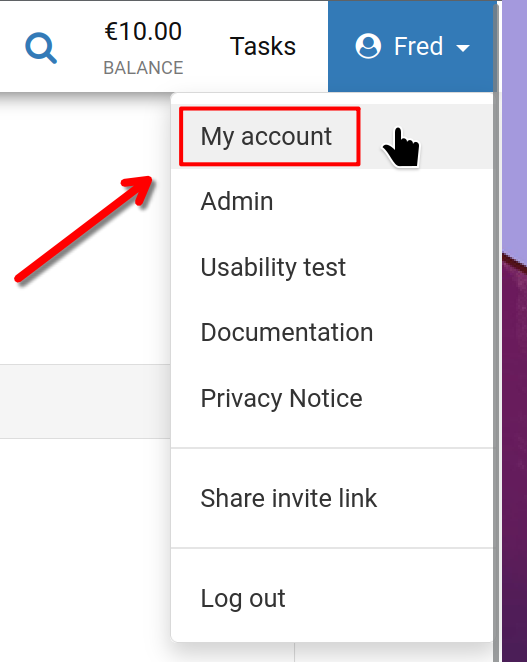
To begin, click on your username located in the top-right area of the screen, then select the 'My account' option as depicted.
My Account
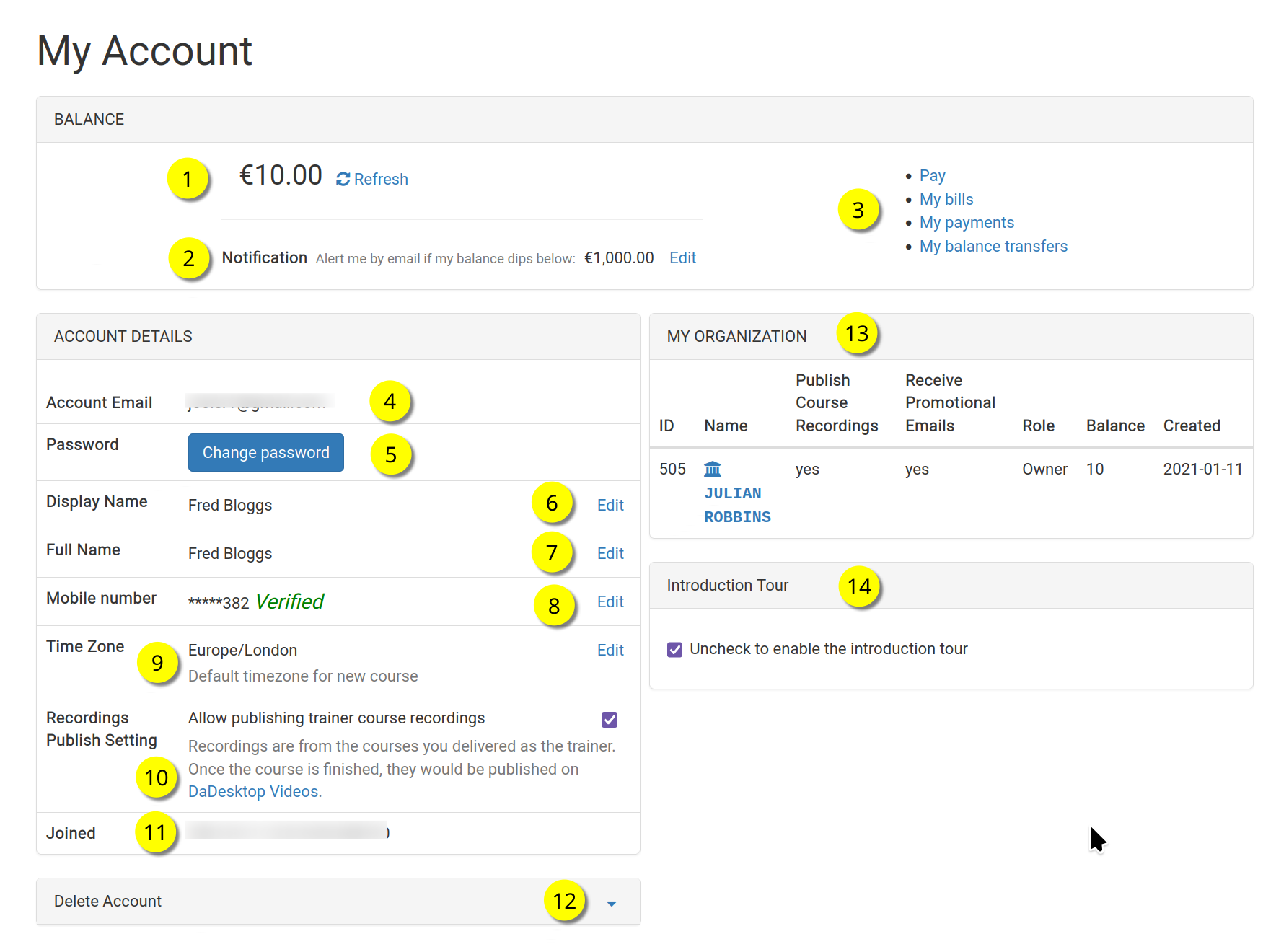
The following is the 'My Account' interface.
Refer to each numbered item for an explanation of each feature.
Key
| Explanation | ||
|---|---|---|
| 1 | Current Balance | Displays the user's available funds |
| 2 | Alerts | Users can configure a low-balance threshold; once reached, an email notification will be sent |
| 3 | Billing Options | Here you can access links for making payments, viewing your balance, checking past transactions, and transferring funds |
| 4 | Email Address | This field is read-only |
| 5 | Password | You can update your password from this section |
| 6 | Display Name | The name visible to others, which can be modified at any time |
| 7 | Full Name | Your complete name, also editable whenever needed |
| 8 | Phone Number | This can be updated as needed |
| 9 | Time Zone | Ensures all times are displayed according to your local time zone |
| 10 | Course Recording Preferences | Trainers can choose to enable or disable publishing course recordings from their machine to the dadesktop.com/videos website |
| 11 | Member Since | The date you registered with DaDesktop |
| 12 | Delete Account | To permanently remove your dadesktop account and all associated data, click this option |
| 13 | My Organisation | You may also create an Organisation tied to your account. This area displays your organisation's details |
| 14 | Guided Tour | If you need to view the introduction again, you can re-enable the guided tour by unchecking this box |