Resizing Disk, CPU and Memory
Instructors can adjust the resources originally provisioned for the Fresh-Start Desktop. This is handy when the course needs more CPU, memory, or storage to run additional programs or software.
To modify these parameters, first ensure the Fresh-Start desktop is stopped. Click the gear icon and select "Stop" or "Force-Stop" the desktop.
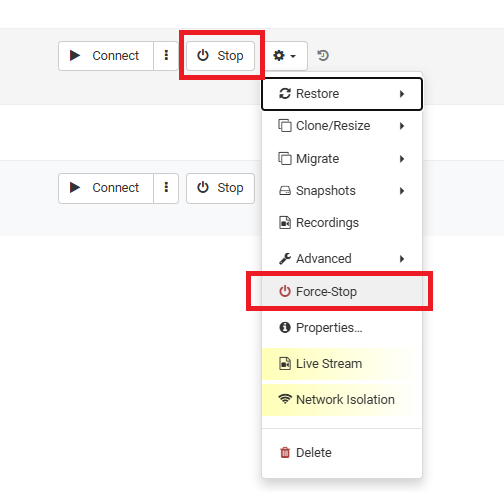
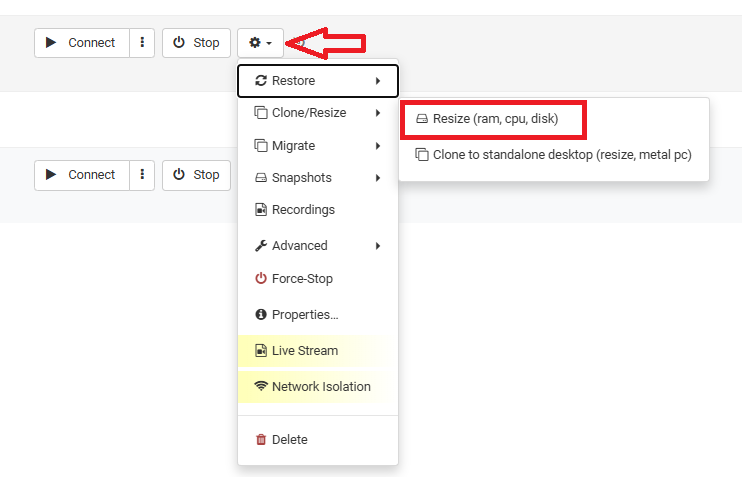
Once stopped, you can resize the allocated resources. Click the gear icon and go to advanced > Resize (ram, cpu, disk).
After choosing this, a Resize form appears, letting you reallocate the resources (CPU, RAM, or Storage) your desktop requires. The form indicates the maximum limit for each.
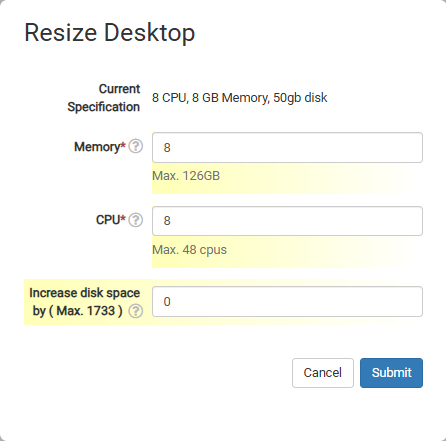
Keep in mind that these adjustments affect the desktop's price, but it's advisable to assign what's needed for smooth course operation.