Utilizing Desktop Snapshots
How Snapshots Work
Snapshots provide you with a simple way to back up your virtual machine and restore it effortlessly.
For example, before performing a risky system upgrade that might break your setup, you can shut down the virtual machine and capture a snapshot.
If the upgrade succeeds, you can safely delete the snapshot; otherwise, you can return the machine to its prior state.
Snapshots are supported on all DaDesktop configurations—Fresh Start, Trainer, Participant, and Standalone machines can all take advantage of them.
Note that restoring a snapshot will power the machine down, ready for a restart.
Taking a Snapshot
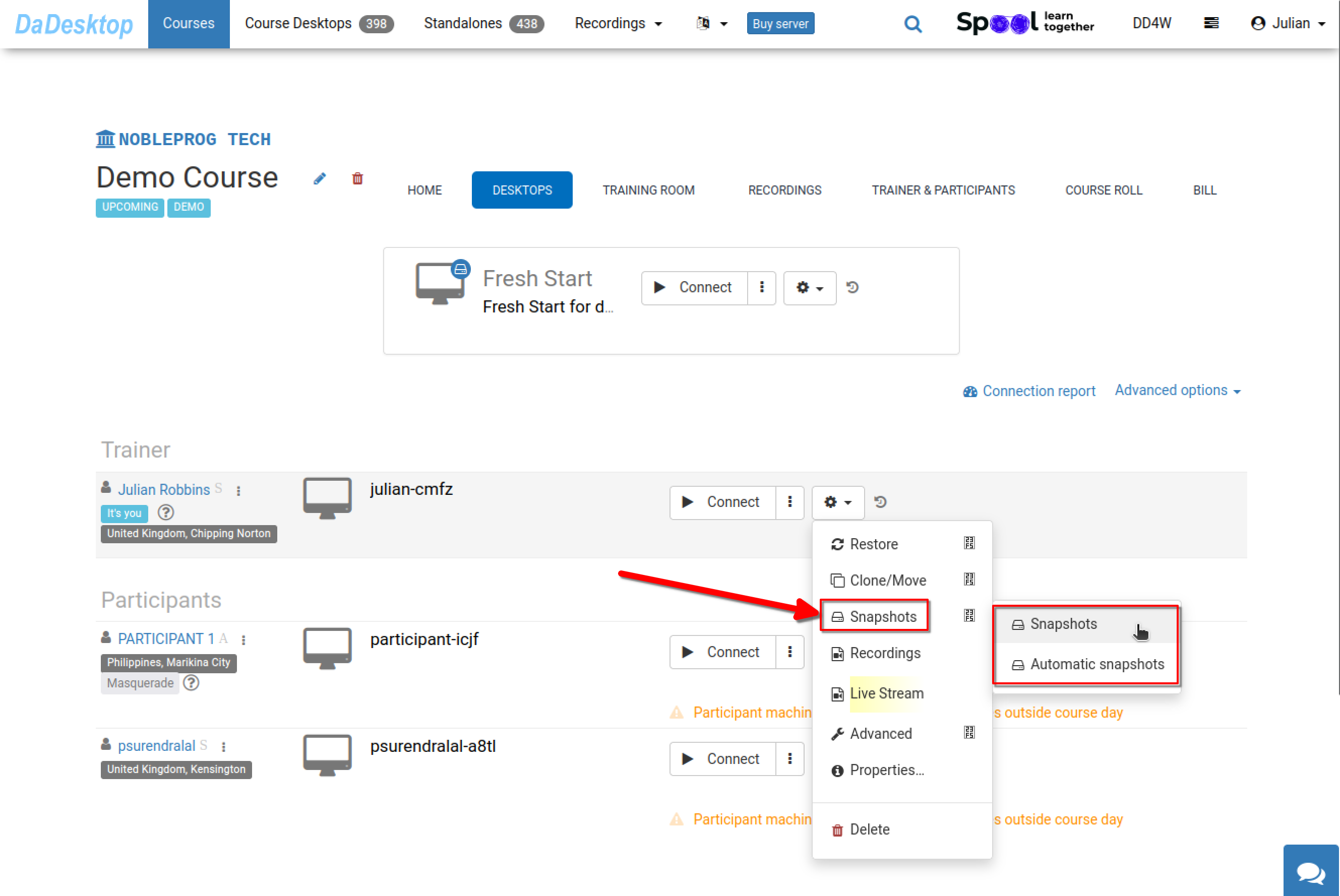
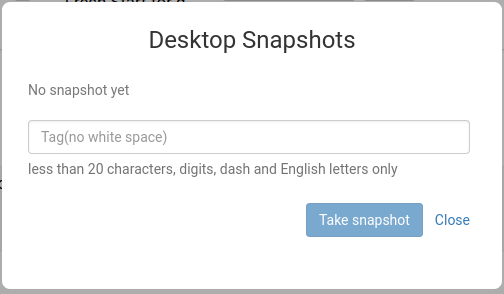
Here is how you create a snapshot. Assign it a clear, descriptive name so you can later identify the exact moment it was taken.
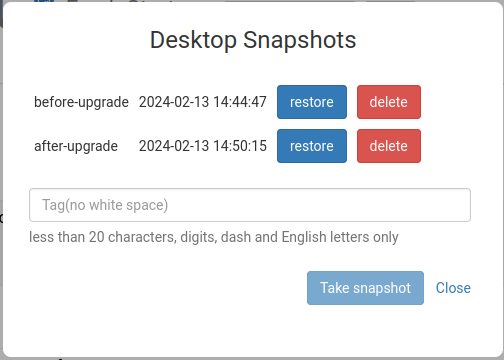
In the example below, two snapshots have been captured at different stages. You can restore or delete either one as needed.
Automated Desktop Snapshots
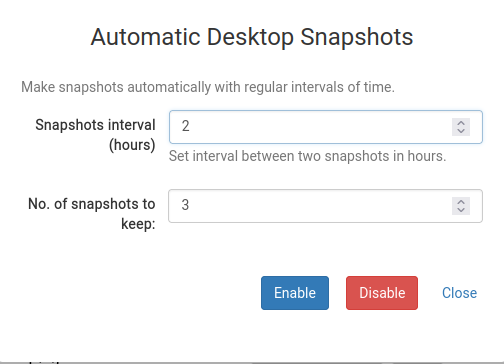
If you’d rather have snapshots taken on a regular schedule to avoid forgetting them, Automated Desktop Snapshots is the ideal choice.
You can specify how many snapshots to retain and how often new ones are created directly from this interface.