Oracle Server Troubleshooting and Fixes
Most applications run perfectly when prepared within the Fresh Start machine on DaDesktop (DD). However, a couple of applications may not function as expected after the cloning process and require a few additional steps to operate normally.
System Details
-
Oracle Database 19c (other versions likely show similar behaviour)
- Installed with a Windows 10 template
Fresh Start Remediation Notes
-
This is a general guide for resolving issues with this application in Fresh Start. The steps may vary depending on your specific configuration.
-
Summary: The fix in Fresh Start involves replacing the original hostname (which becomes meaningless after cloning) with the localhost address 127.0.0.1. Furthermore, extra database Listeners may have been added that confuse the configuration; these should be removed as demonstrated below.
Fix Procedure
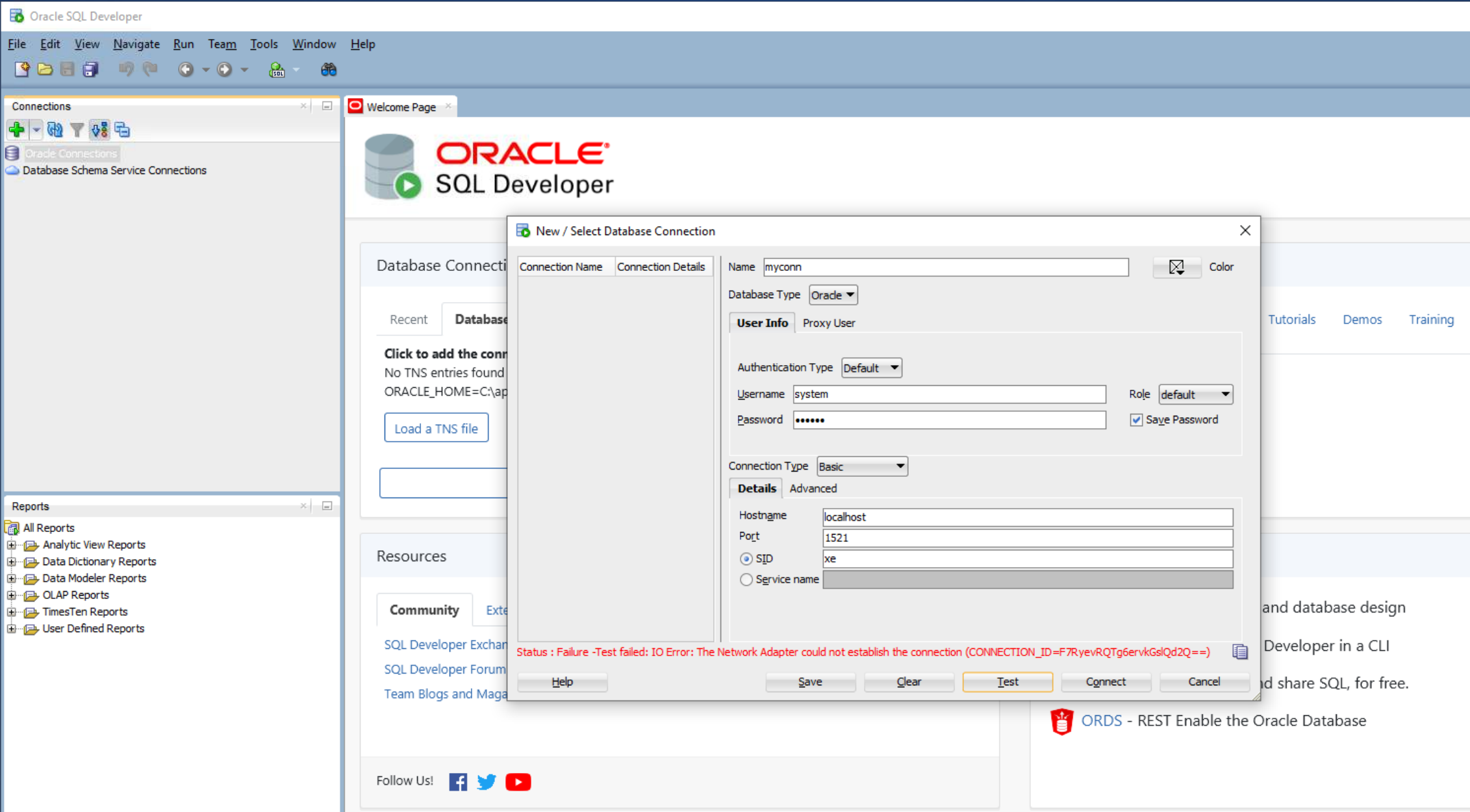
1. The image below illustrates a database connection network failure that occurs in the Oracle SQL Developer application.
2. Launch the Oracle Net Manager application.
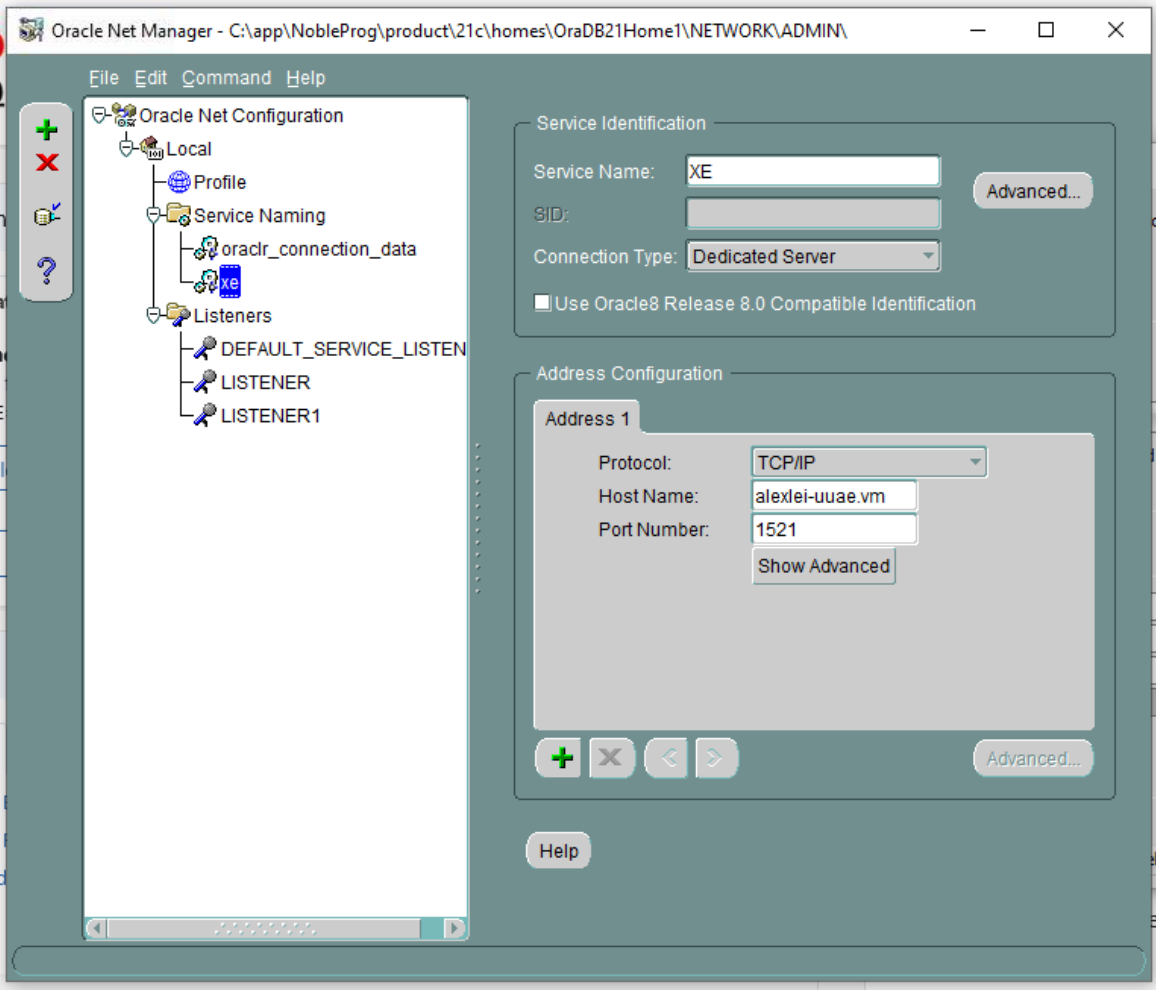
3. The xe service details appear, showing the original host information (e.g., alexei-uuae.vm).
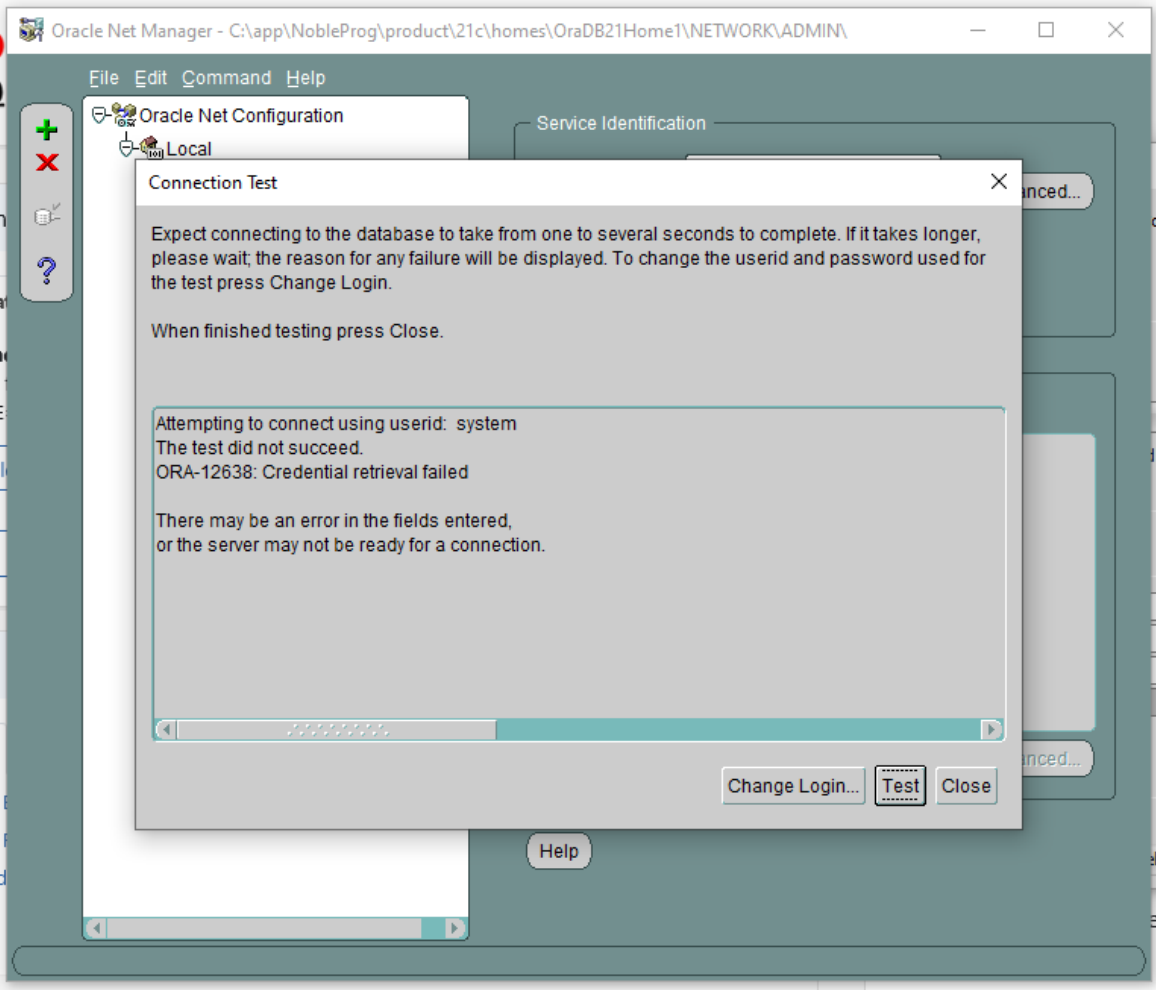
4. The connection test fails (using the system username and corresponding password).
5. In Oracle Net Manager, navigate to Listening Locations, Listener. The host details display the original hostname 'alexei-uue.vm', which will be updated.
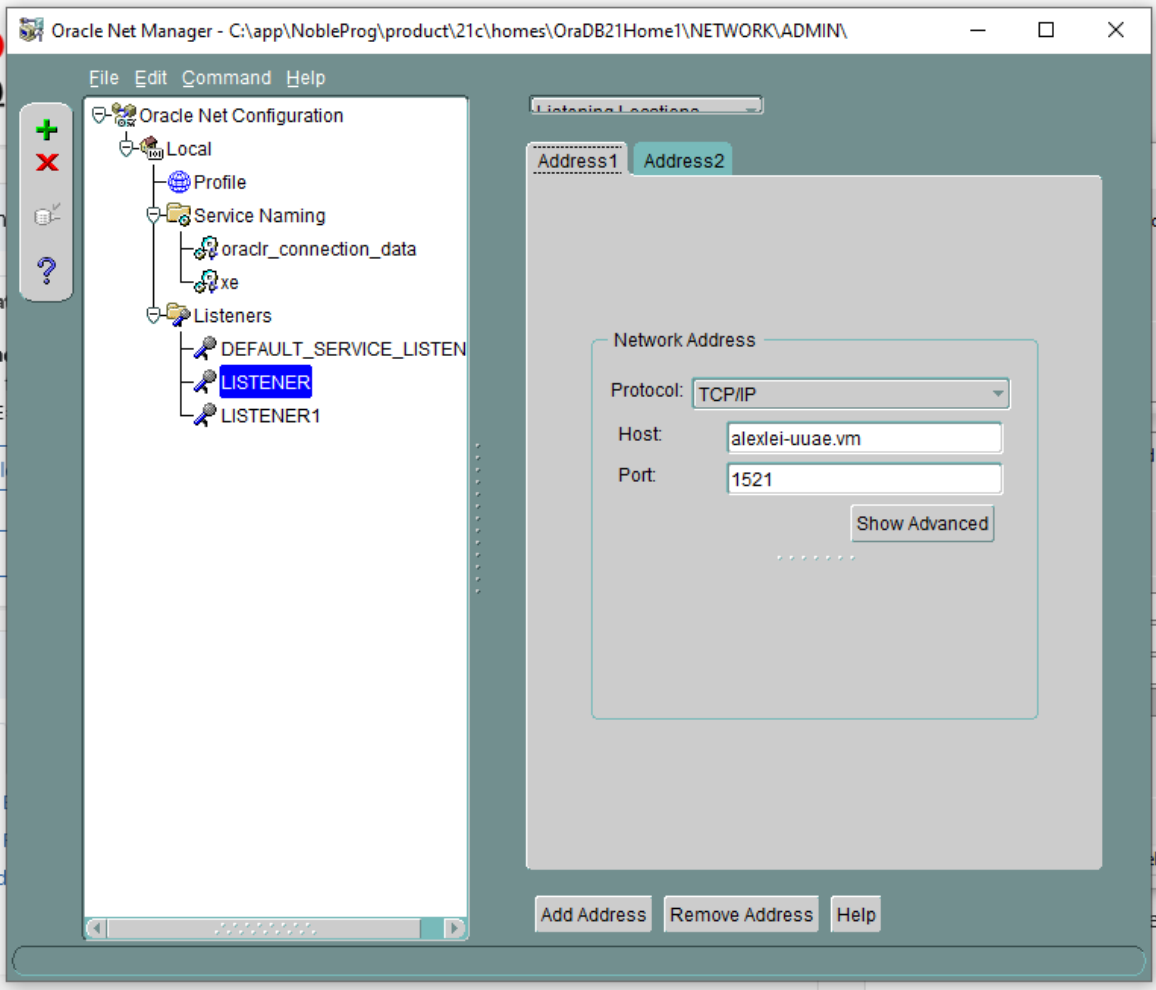
6. No databases are shown as configured for LISTENER1. Inspect any Listeners that lack associated database services, and if found, delete that Listener.
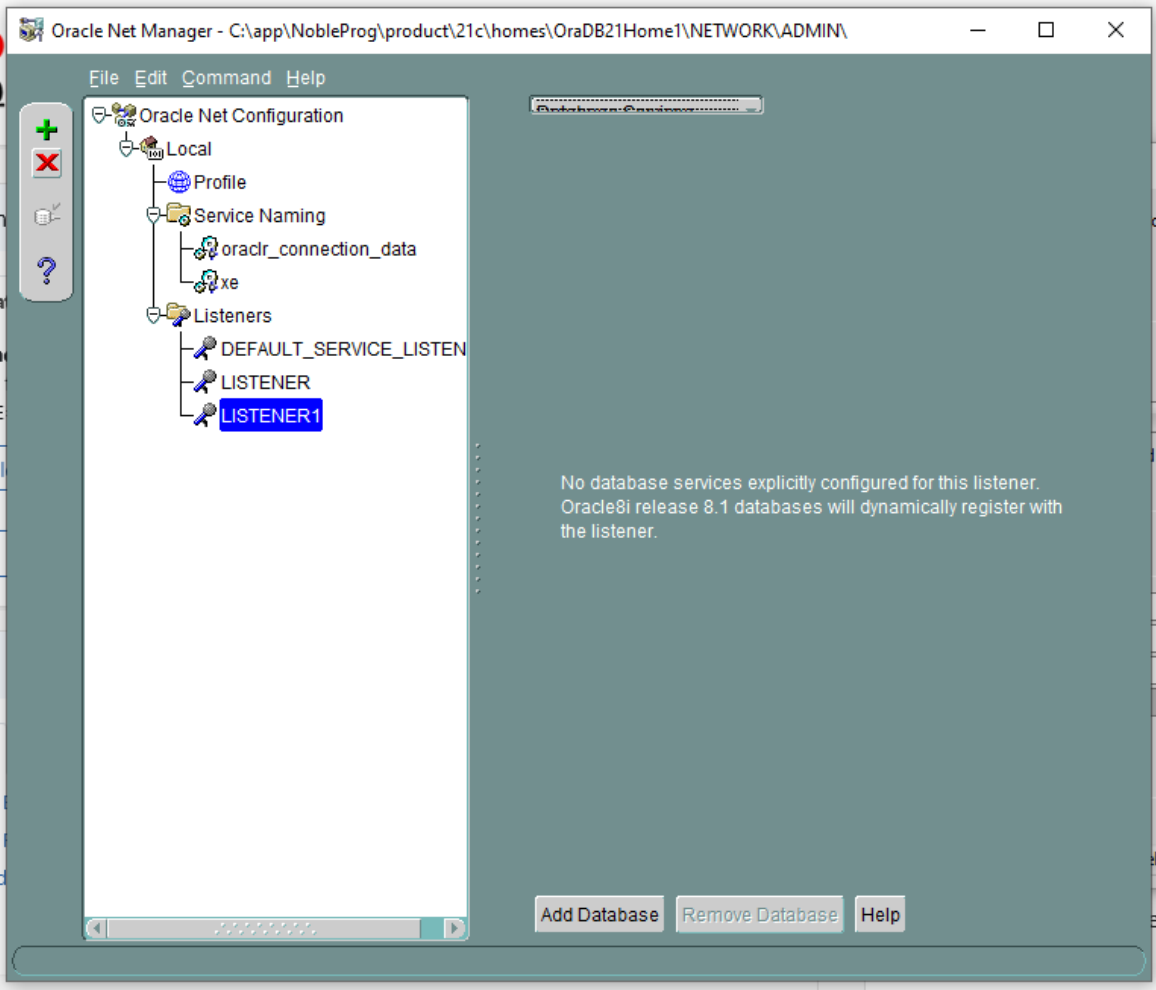
7. Therefore, delete LISTENER1 and confirm. Note: This is an example from our setup; the situation may differ, but it is provided for illustration.
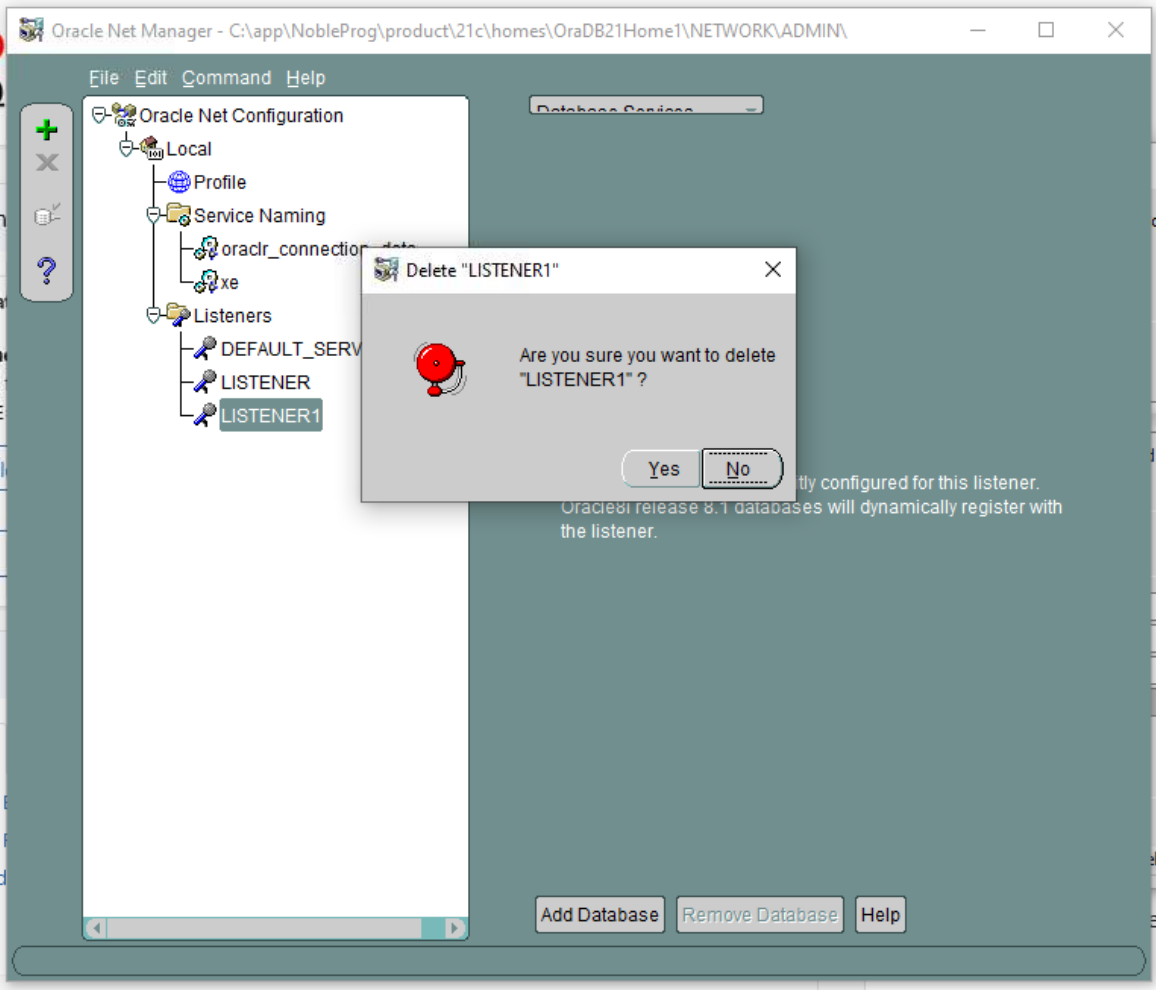
8. Proceed to the DEFAULT SERVER LISTENER. Check each Listener sequentially; in this case, no listening location is available.
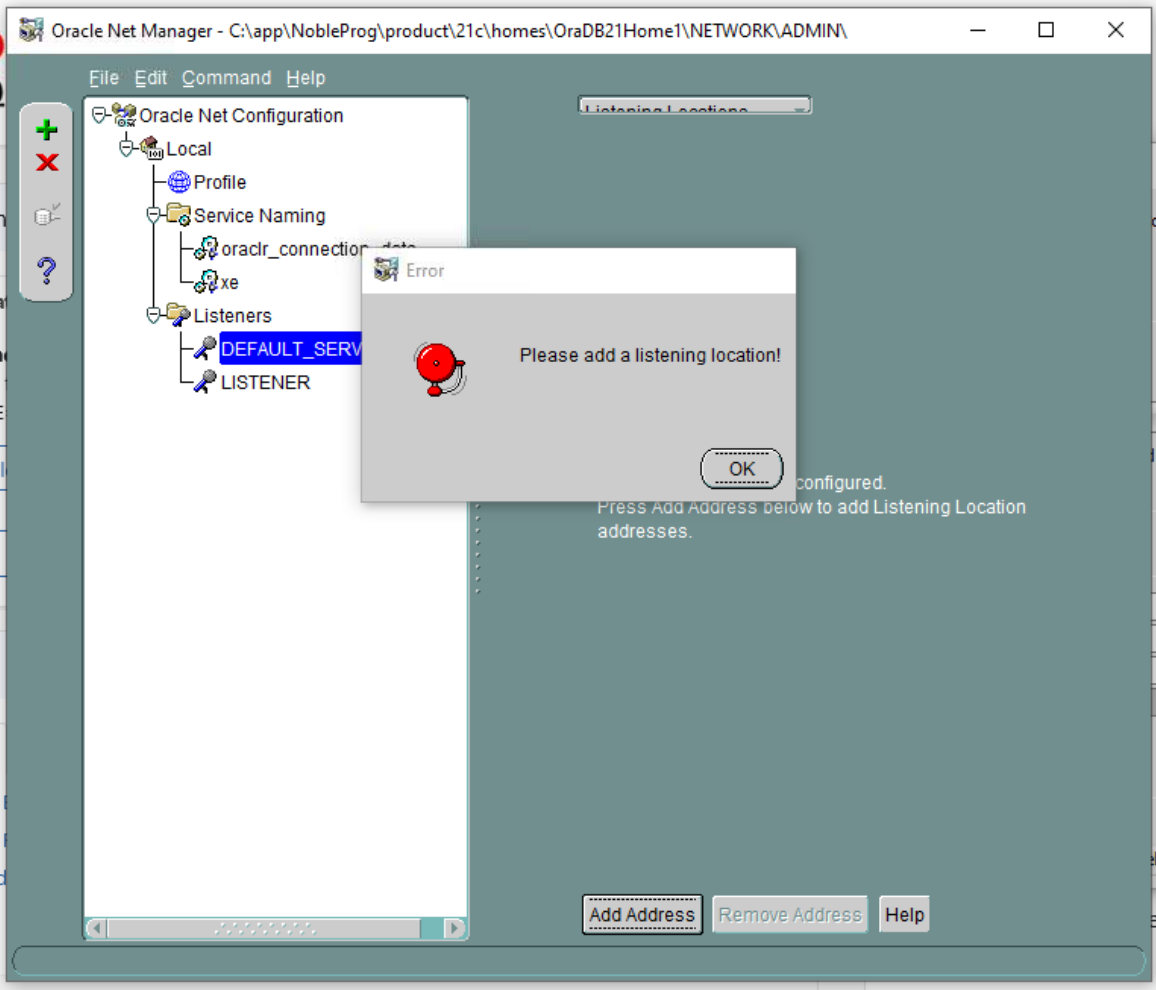
9. Consequently, delete the DEFAULT SERVER LISTENER.
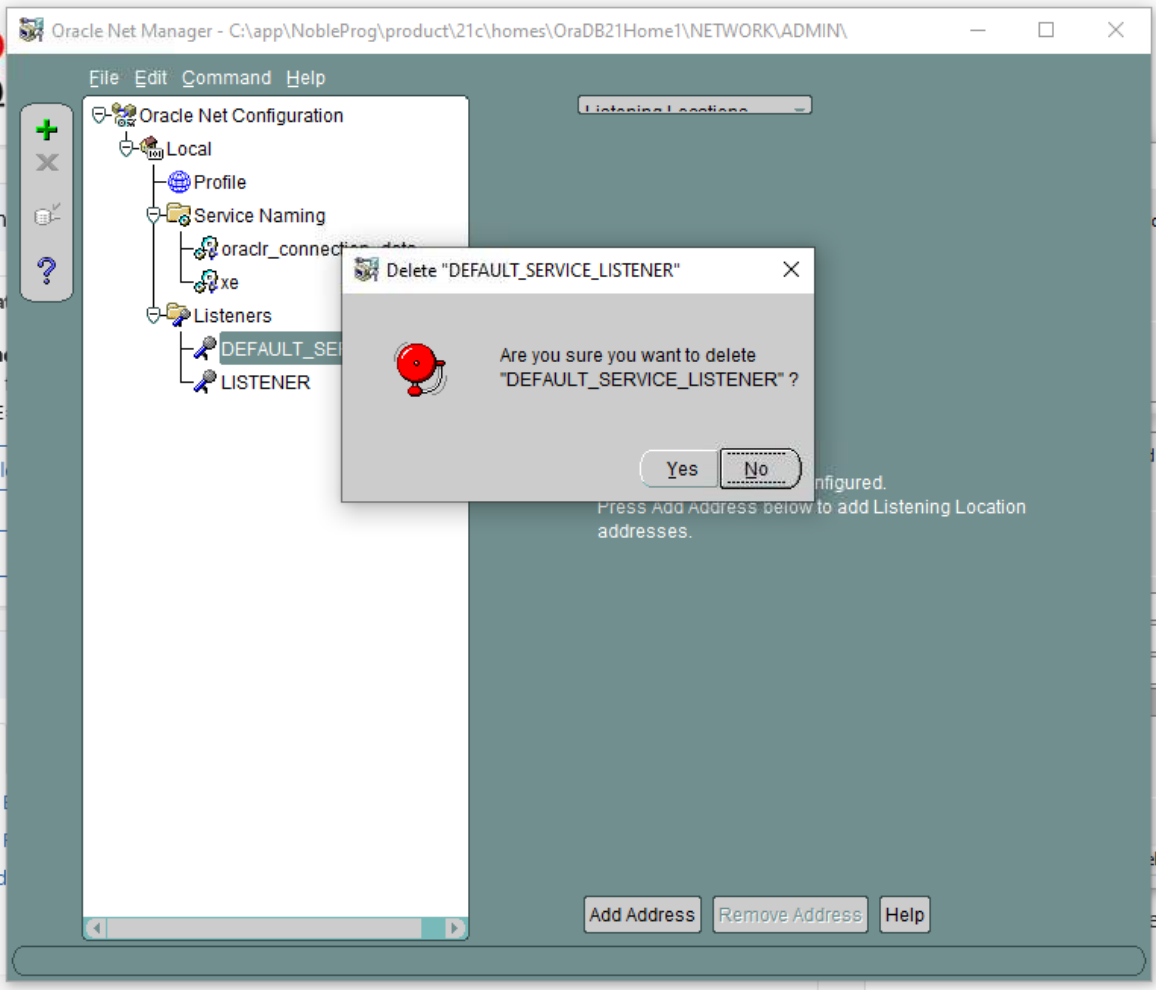
10. With only LISTENER remaining, observe the existing VM hostname that must be modified because the cloning process will alter it.
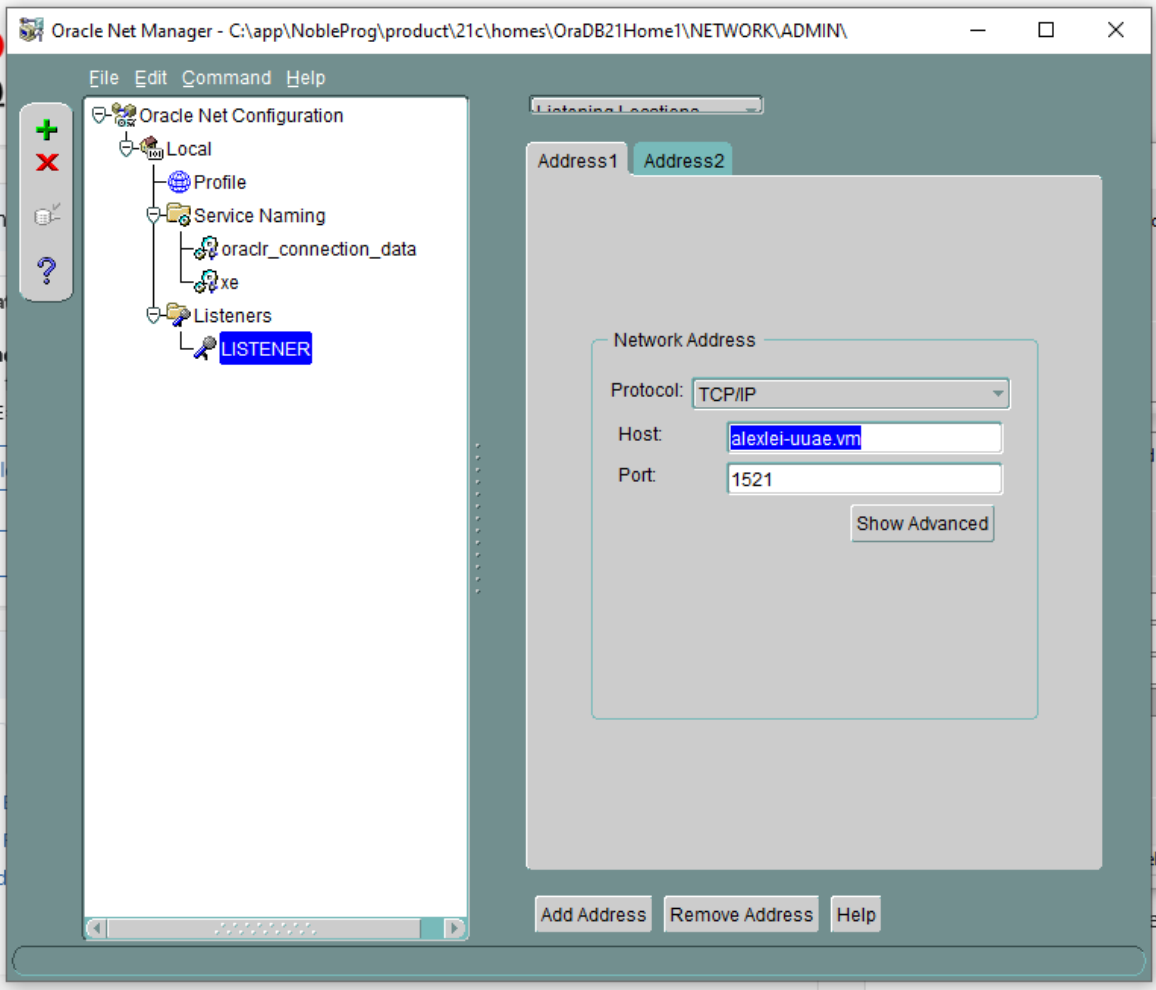
11. Change the host from 'alexi.uuae.vm' (or your specific hostname) to 127.0.0.1, leaving the port unchanged.
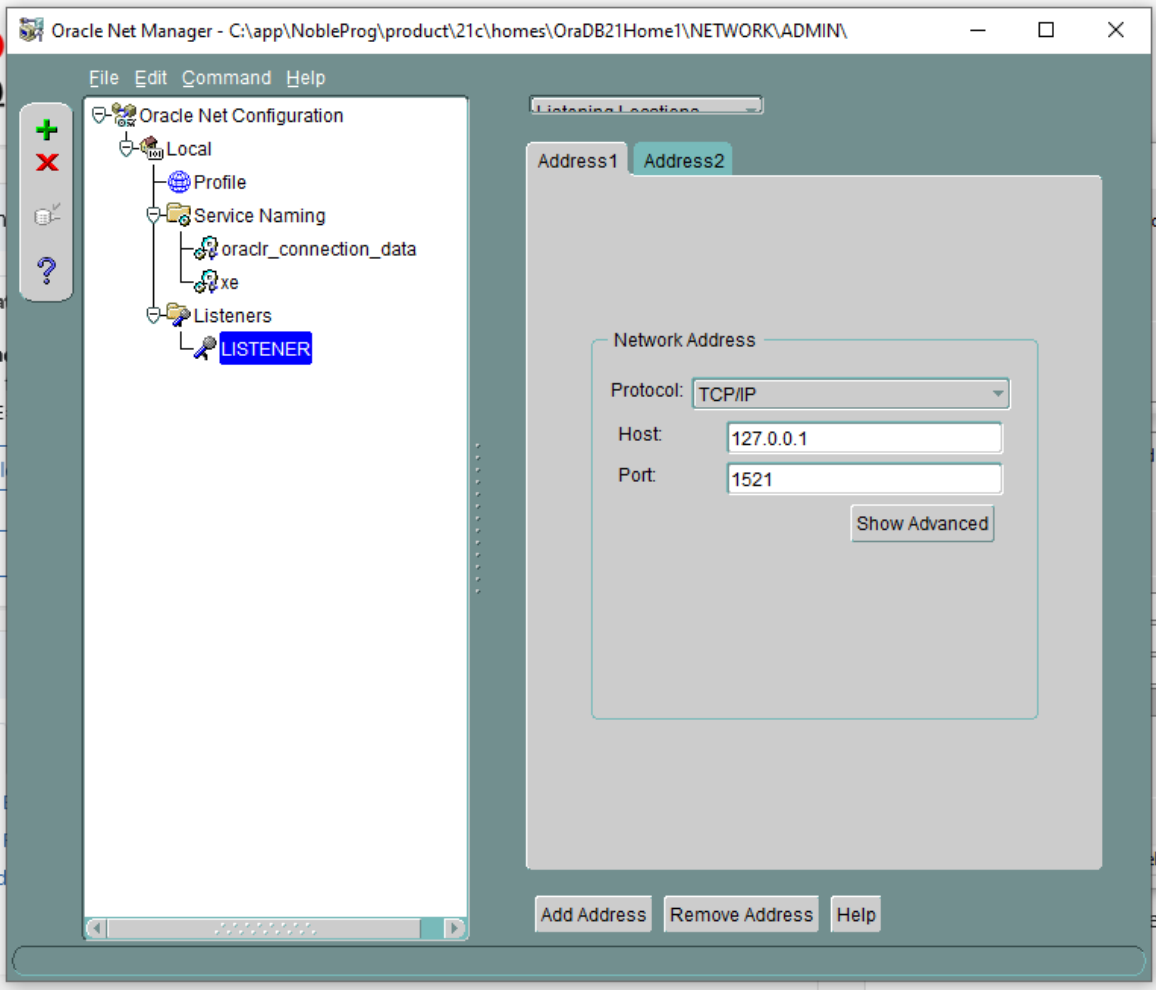
12. Next, configure the existing database.
13. Update the SID to XE and set the Global Database Name to xe.local.
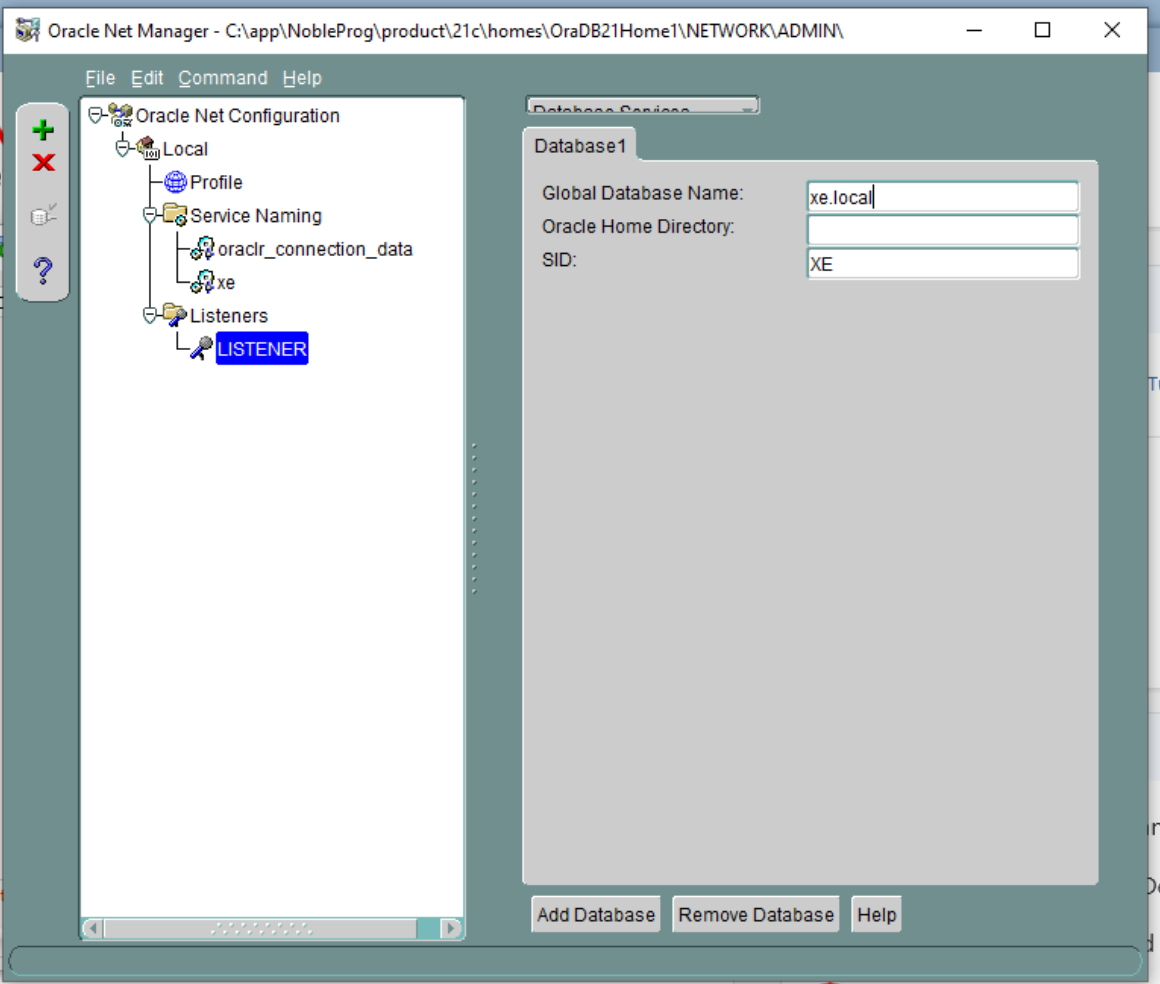
14. Save the network configuration and exit the application.
15. Open a Command Prompt and restart the listener service. Run 'lsnrctl status', then 'lsnrctl stop', and finally 'lsnrctl start'.
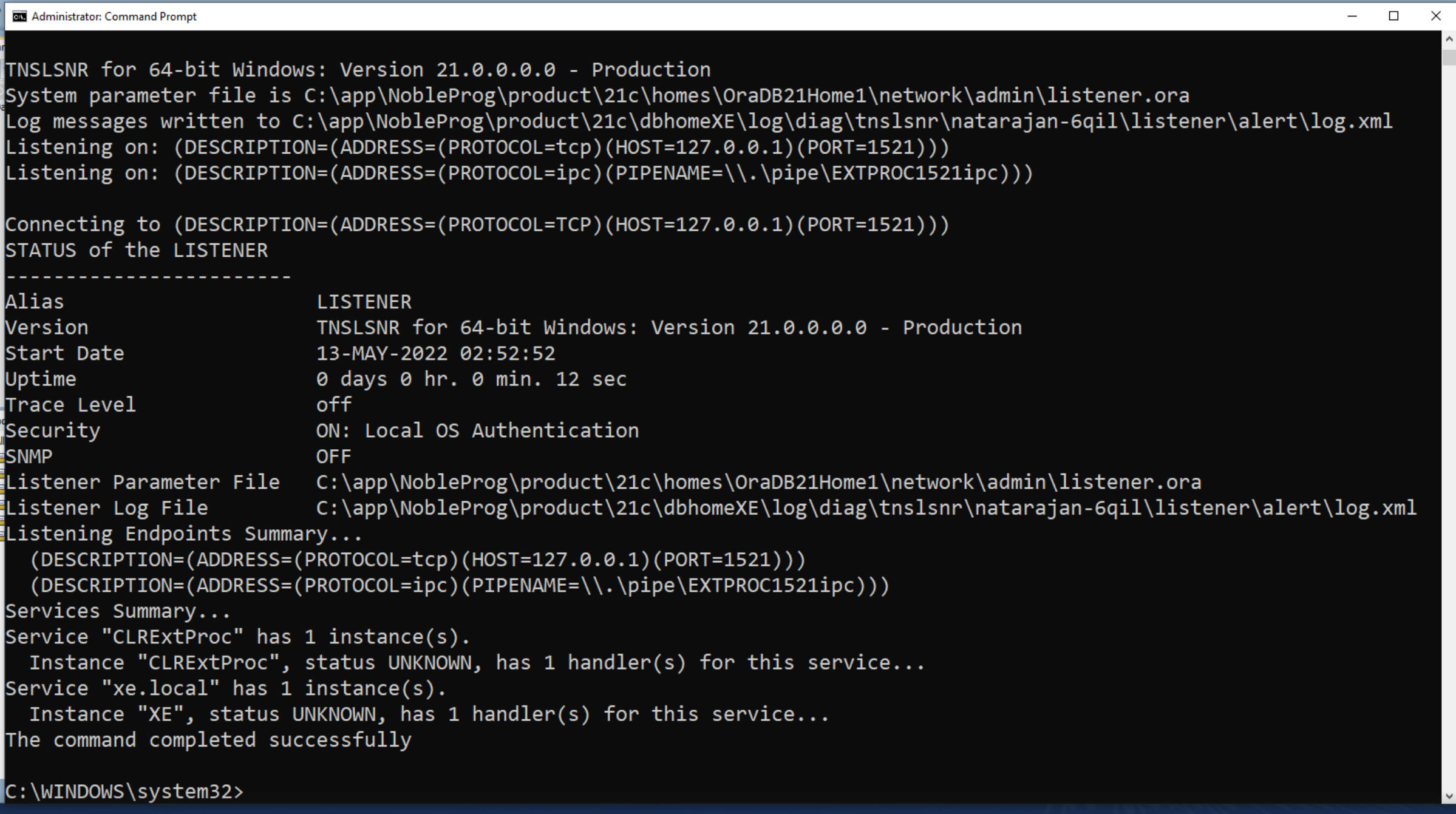
16. Re-launch Oracle Net Manager.
17. Remove 'alexei-vm' from the Service Naming > xe section.
18. Change the host to 127.0.0.1.
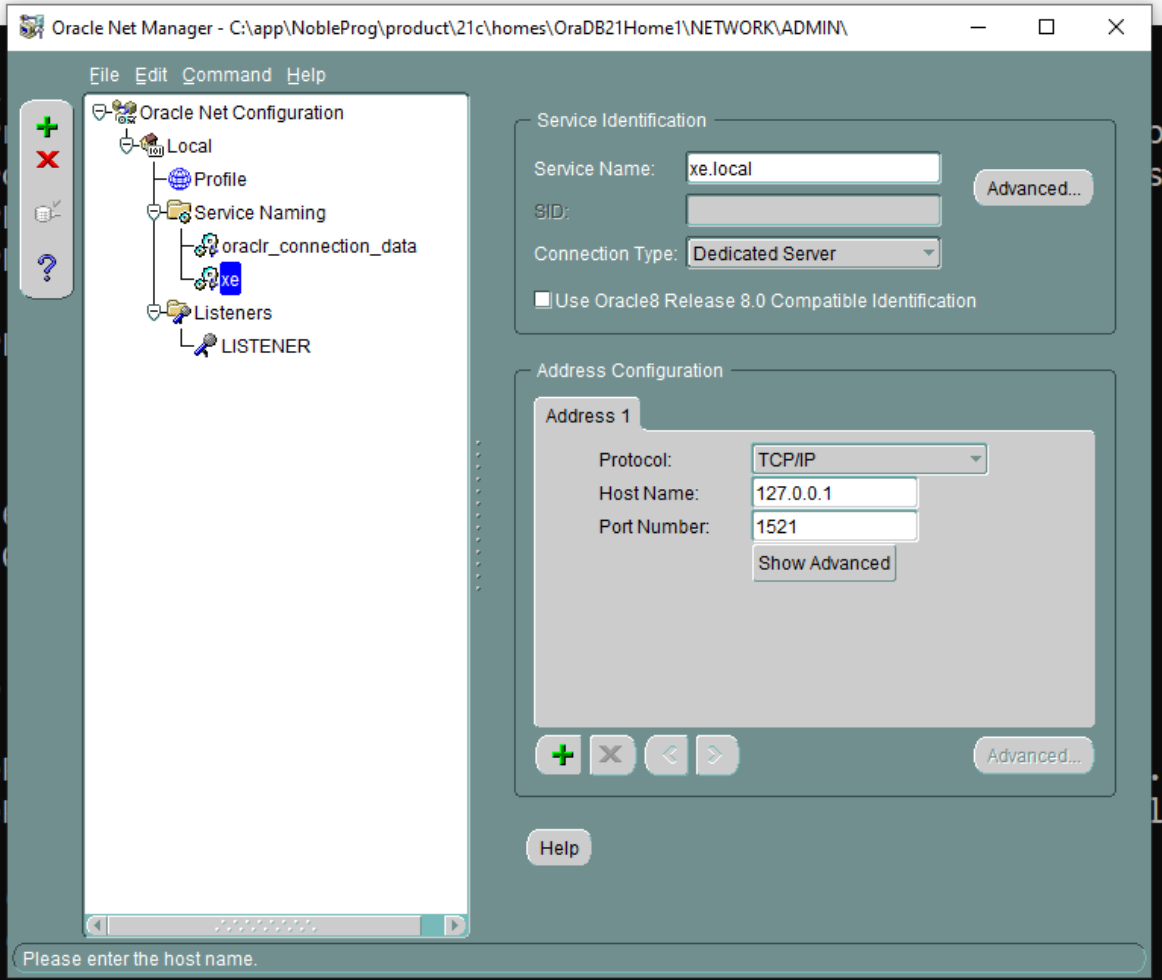
19. Save the network connection.
20. Perform a Connection Test. Click the small button shown in the image below to initiate the test.
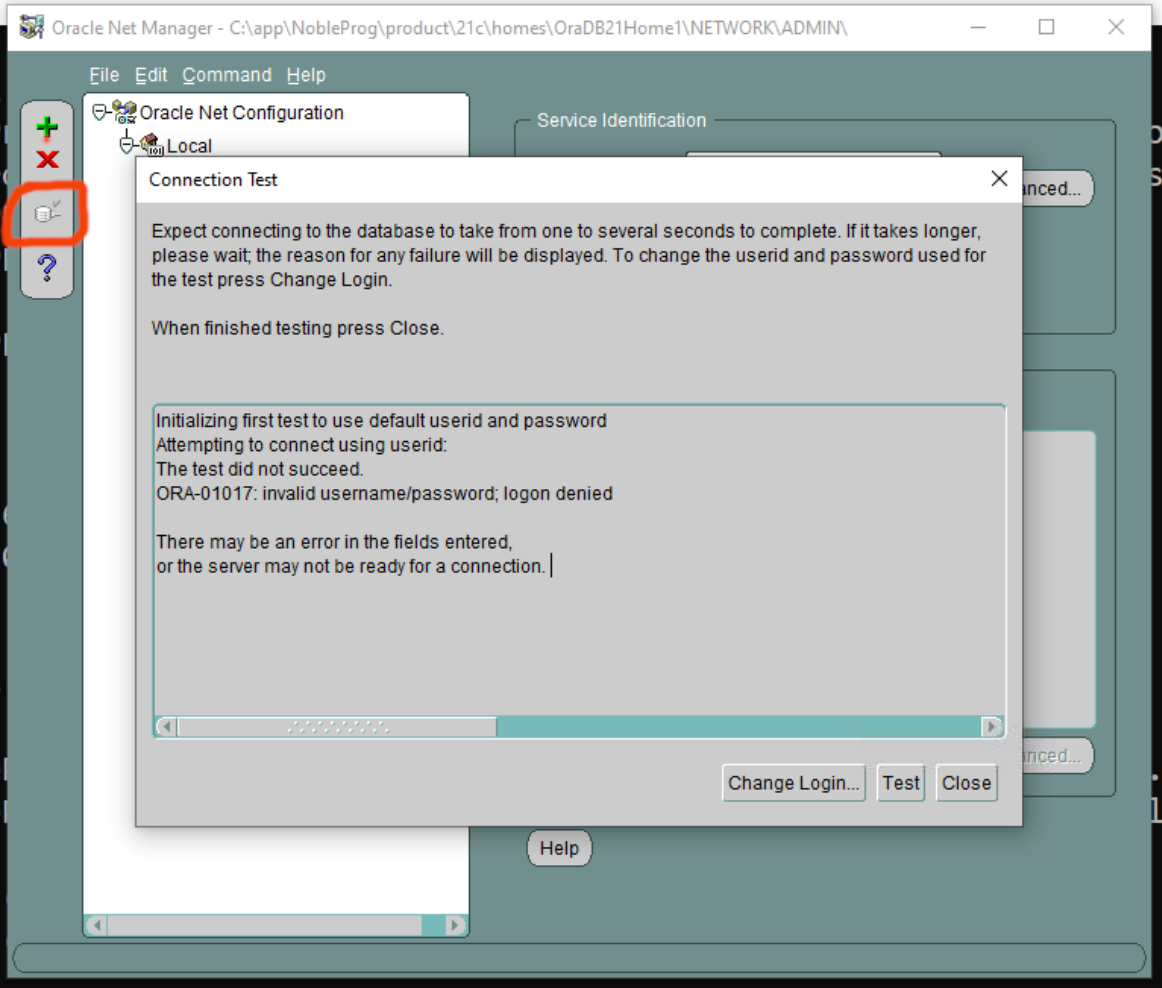
21. Modify the login details: set the username to ‘system’ and enter the appropriate password.
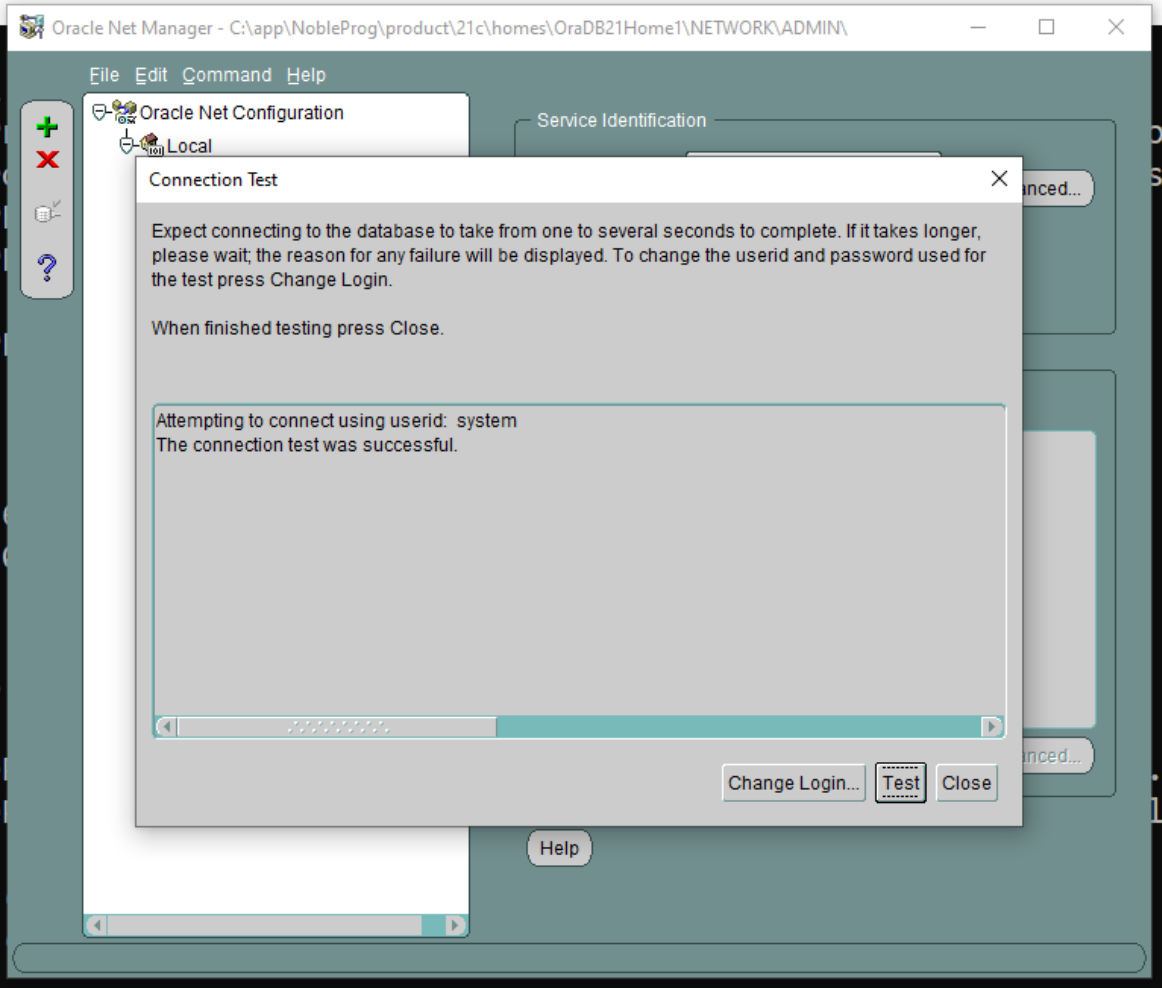
22. Save the network connection if prompted.
23. Return to the main Oracle SQL Developer application and run the connection test once more.
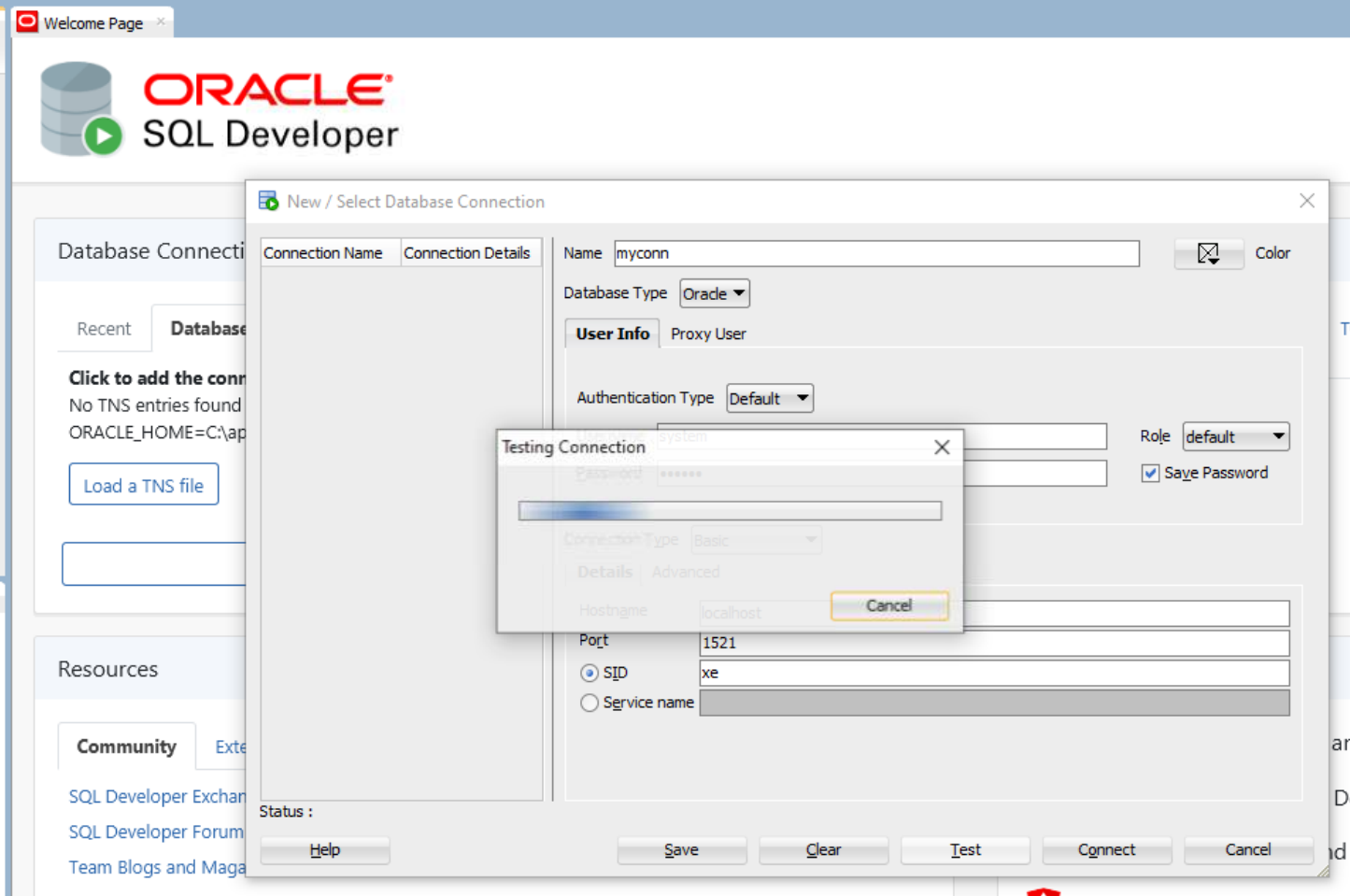
24. If the connection is successful, navigate to the Connections panel on the left side, expand Oracle Connections, and verify that the database tables appear as expected.
25. Proceed with any remaining FreshStart machine configuration and clone the FreshStart machines to the Trainer and Participant machines.
The Oracle Database server should now operate correctly on those machines.
If you continue to experience issues, contact DaDesktop Support through the chat application; we'll be happy to help.