Hyper-V Server
UPDATED April 2024
When you run applications from a Fresh Start machine on DaDesktop (DD), the vast majority behave exactly as they should. However, a couple of programs don’t take kindly to the cloning procedure and need a few extra tweaks to work properly.
System Details
- Hyper-V Server 2019 and above (other versions will likely show the same behaviour)
- Installed using Windows 10 / Win 2019 Server template
Fresh Start Fix Notes
-
Keep in mind that this is a general guide for resolving this app’s behavior within Fresh Start. The steps might vary based on your specific setup.
-
In brief: Below is the fix for Fresh Start. Hyper-V can run into trouble with duplicate MAC addresses on the External switch after cloning. To fix this, we either switch to the second pre-configured Intel network connection or remove the external switch from the FreshStart machine before cloning — I’ll walk through the steps below).
Fix process
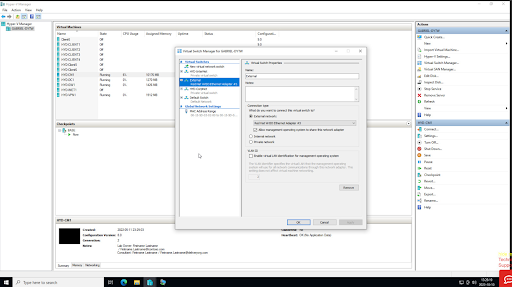
1. The Hyper-V Manager window is shown below. Right-click to open the Virtual Switch Manager dialog.
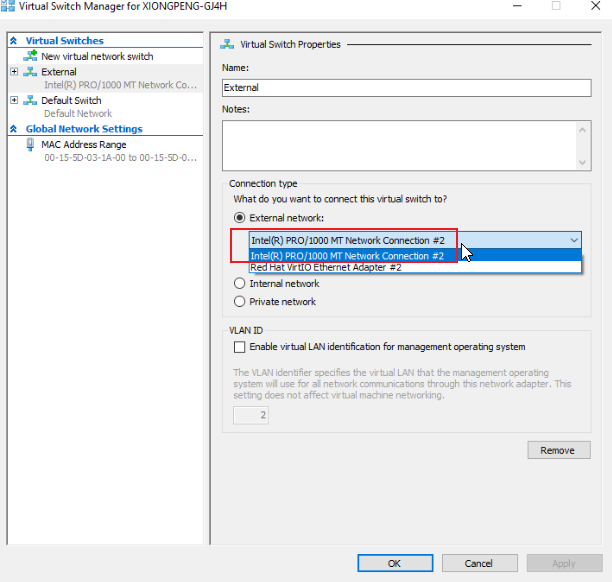
2. In the Virtual Switch Manager window that appears (see image below), choose the 'External' switch, then select the Intel Pro/1000 network connection highlighted. Note: This option only appears with recent Windows 10 templates (v71 and later). Click OK and save the configuration if prompted. Then close Hyper-V Manager.
3. Proceed with any remaining FreshStart configuration. When done, shut down the machine from within the VM and wait for it to stop completely. After that, clone the FreshStart machine to the Trainer and Participant machines as needed.
After these adjustments, Hyper-V Server should function properly on both Trainer and Participant machines. If you skip this fix, participants might end up seeing each other’s VMs because the copied external network adapter leads to duplicate MAC addresses on the External switch.
If you run into any further trouble, reach out to DaDesktop Support through the chat app — we’re glad to assist.