Setting Up a Fresh Start from a Standalone Desktop
-
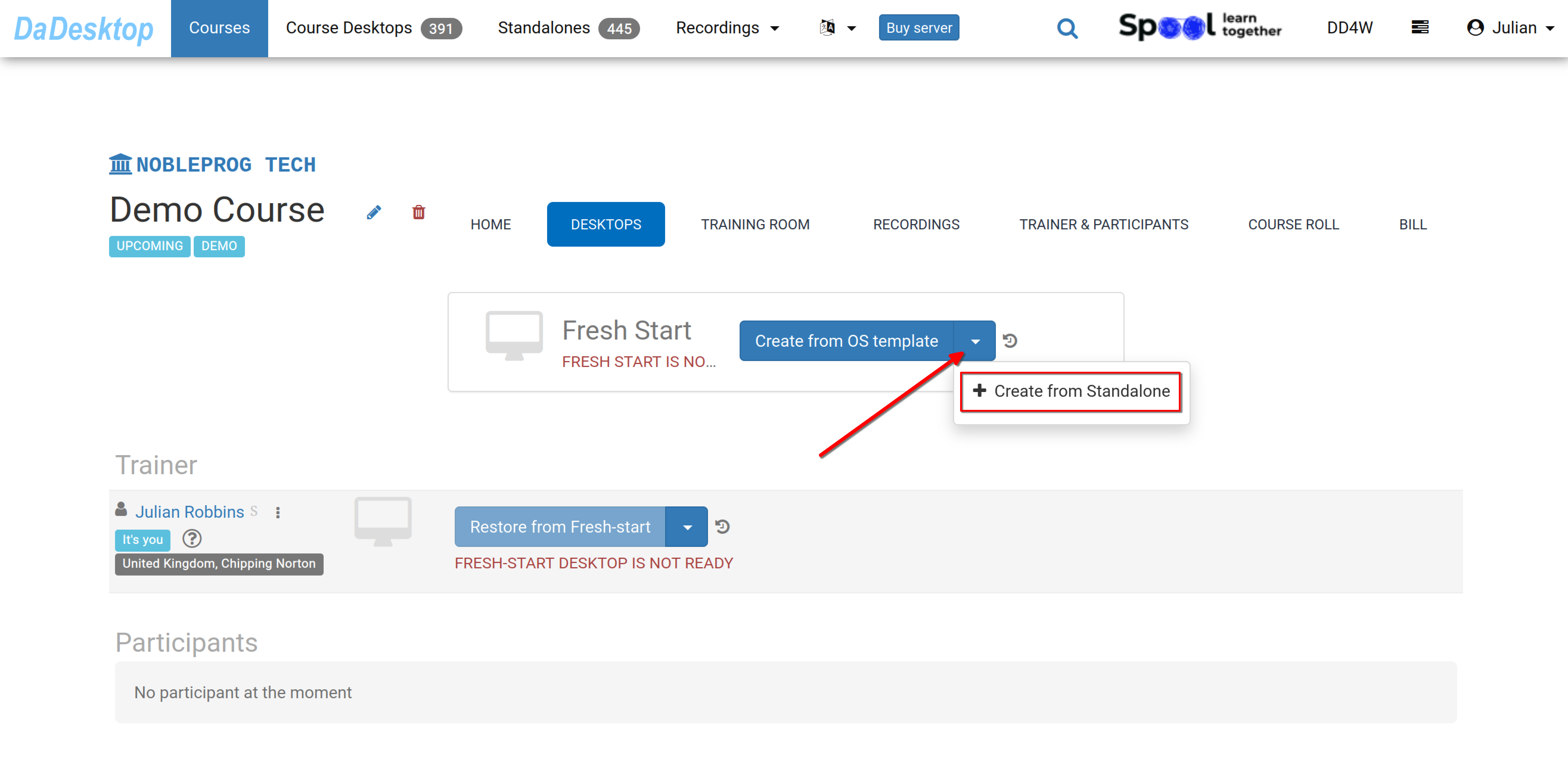
Navigate to the course you've set up here in Portugal, with a Demo course shown as an example below. Next, select the Desktops tab, click the dropdown arrow, and pick "Create from Standalone" to kick off your Fresh Start.
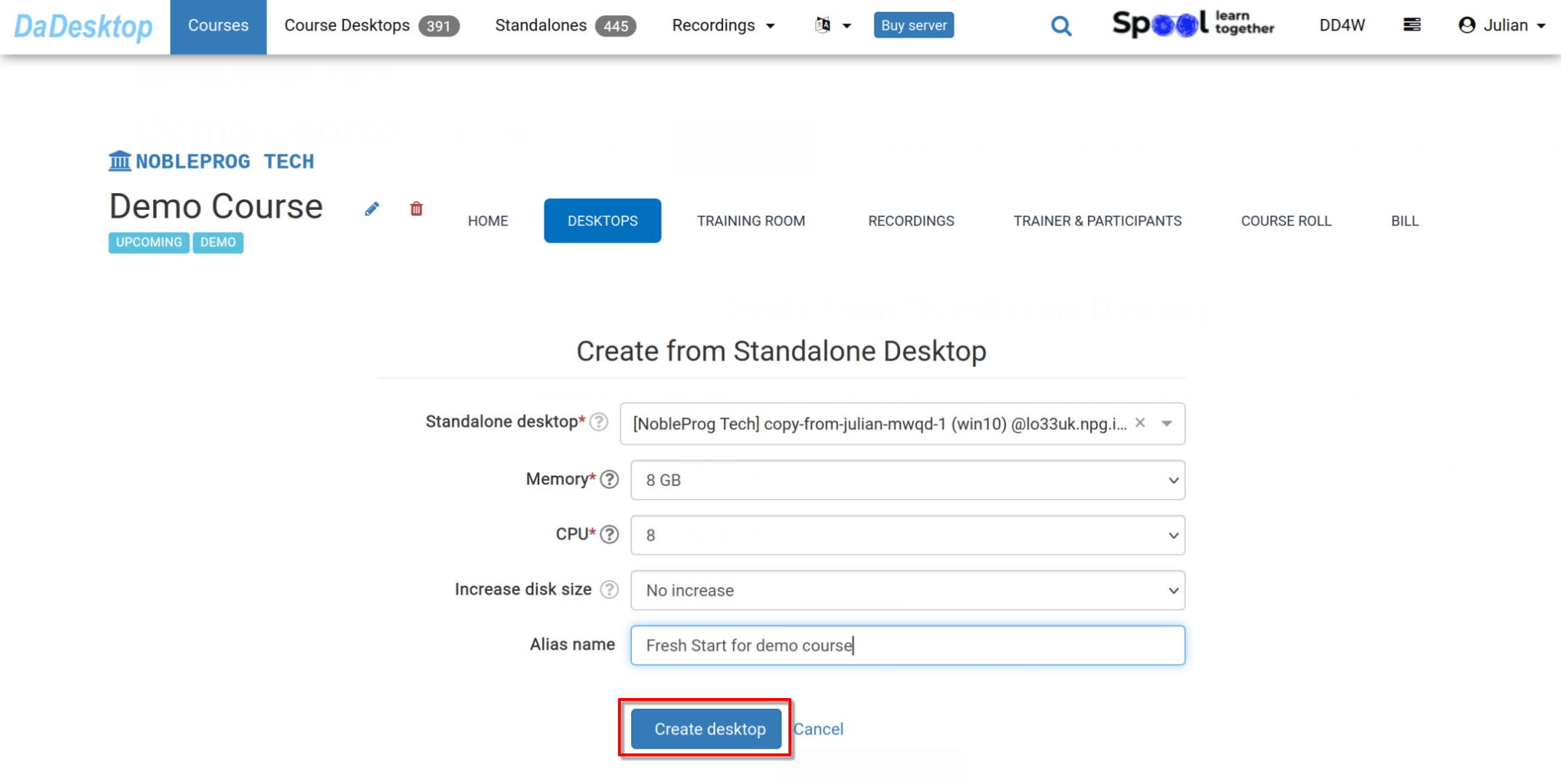
- Pick the "Standalone desktop" that you previously used for the course environment (including software, course materials, quizzes, etc.).
-
If needed, you can adjust memory, CPU, and disk size during this process. Click "Create desktop".
-
The Fresh Start is now prepared. Trainers and participants alike can clone desktops from this setup.
A Fresh Start serves as a course desktop that can be cloned to all participants and the trainer simultaneously. Anyone in the course can restore from the Fresh Start if necessary.
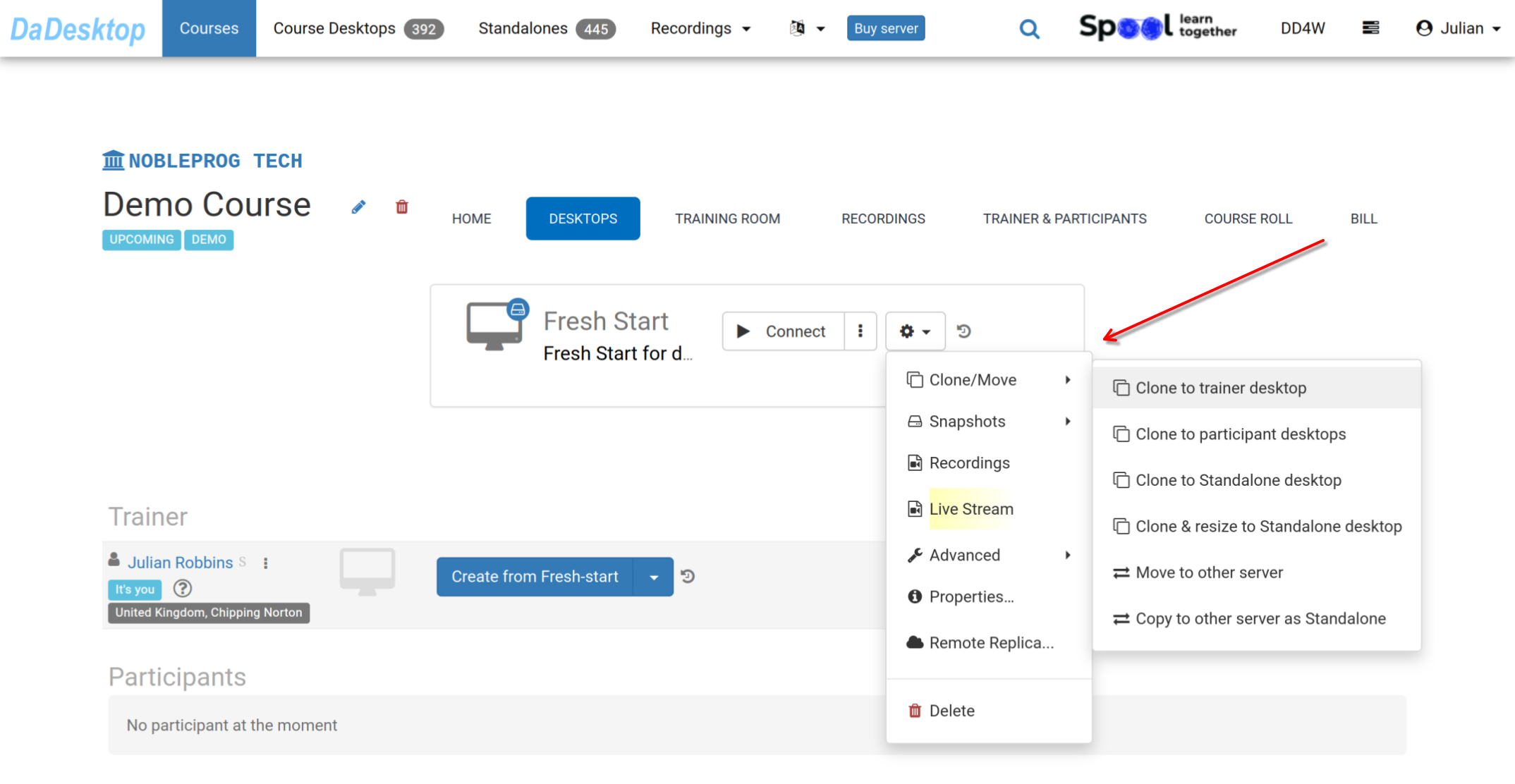
The 'Cog' menu provides additional actions: you can clone the Fresh Start to a trainer, participant, or standalone machine, and you can also clone and resize it into a standalone. Other features include transferring the Fresh Start to a different server, making Snapshots, reviewing Recordings, or configuring a Remote Replica.Refer to the documentation for detailed guidance on these features.