Adjusting the disk size of a Fresh-start desktop in a course
If an existing Fresh Start machine is running low on disk space, you can easily resize it to increase its capacity
To begin, ensure the Fresh-Start machine is stopped
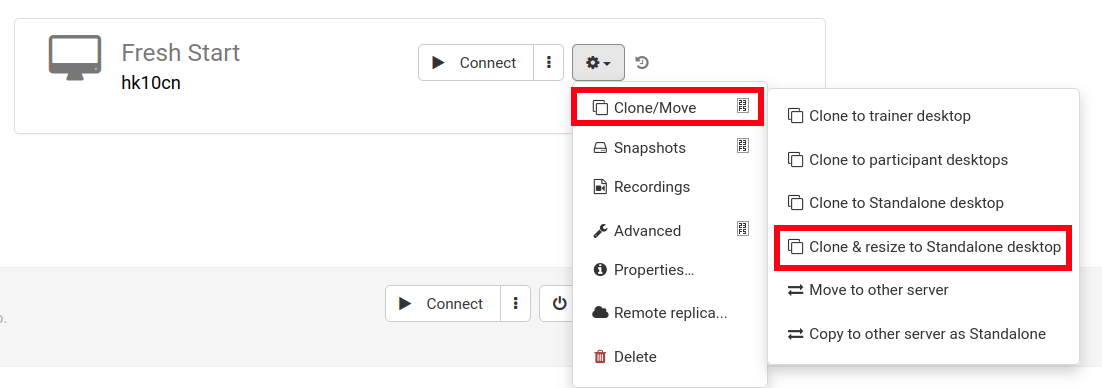
Then, use the Clone & Resize option to create a Standalone machine as shown below (set up an organization if you haven't done so already)
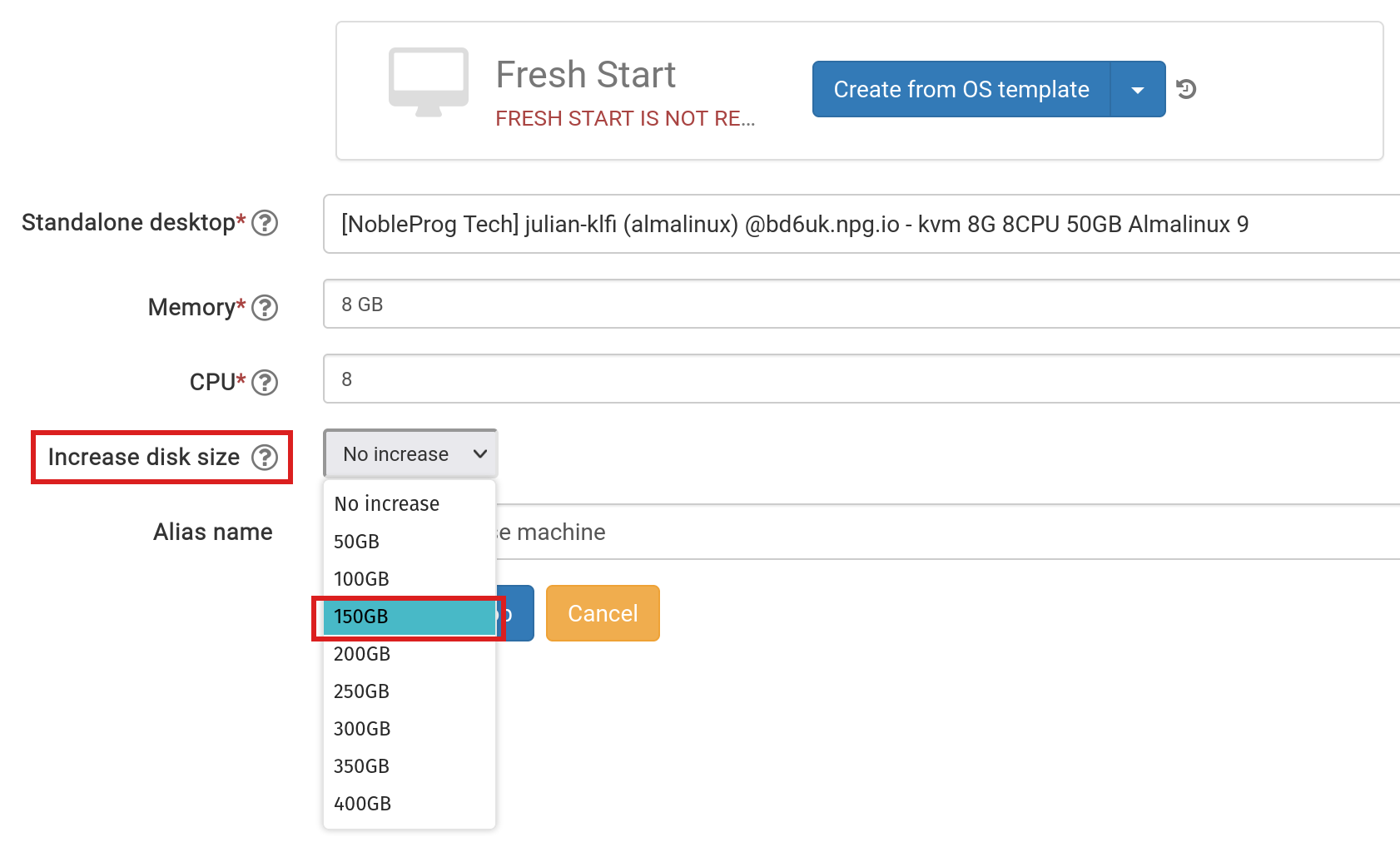
At this point, adjust the disk size to your needs and submit
Click the 'Standalones' link at the top of the page to locate it and verify it's present
Delete the original Fresh-Start machine from the course using the 'Delete' button
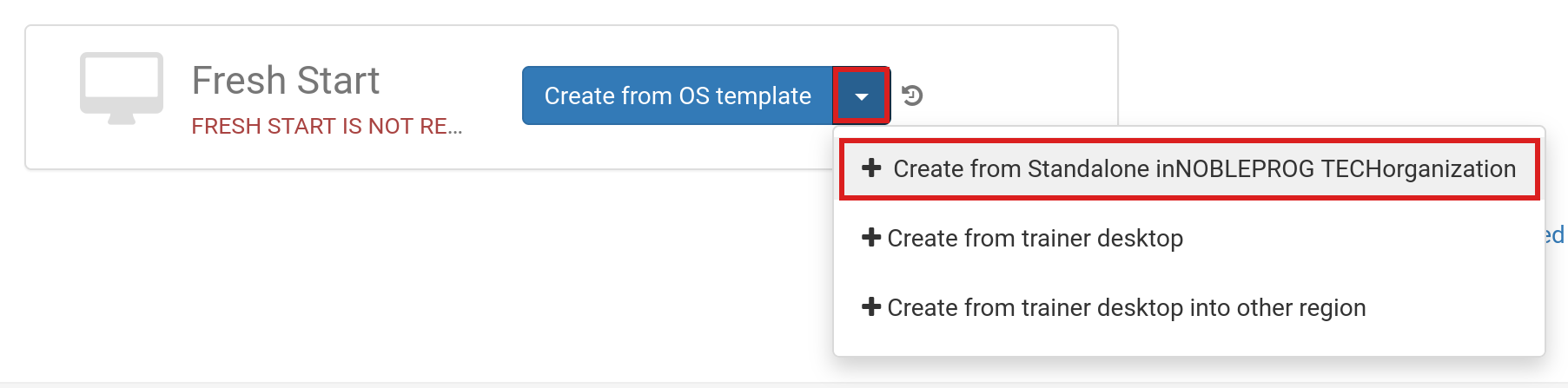
Click the 'Create Fresh-Start from my Standalone' button
Within the 'Create from Standalone' dialog, you can also increase the disk size here if you skipped that step earlier
Provide an alias name if necessary, then click the 'Create Desktop' button
For standard DaDesktop Linux and Windows OS templates, the operating system will be automatically expanded. Note that AlmaLinux standard templates have different default partition layouts, requiring extra manual steps as detailed below.
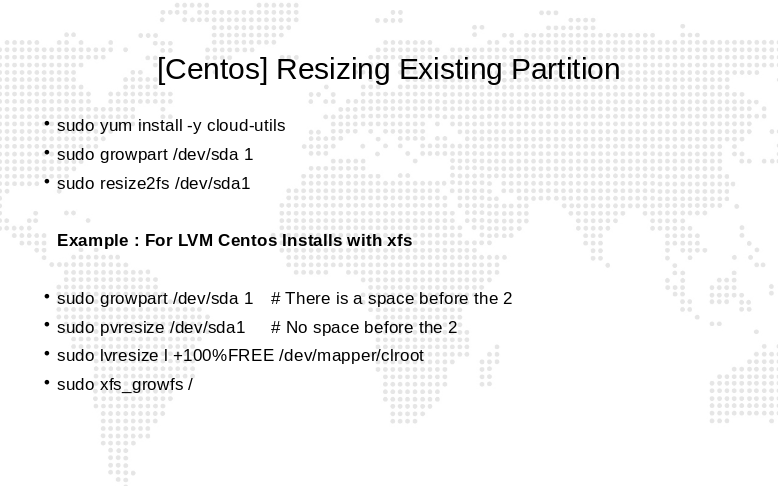
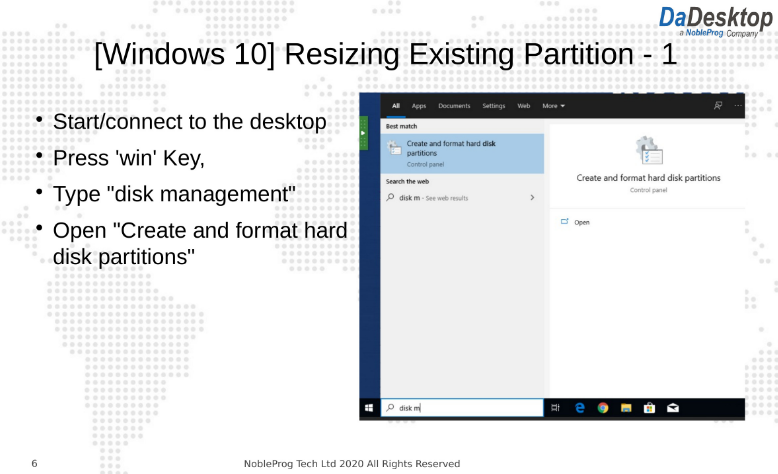
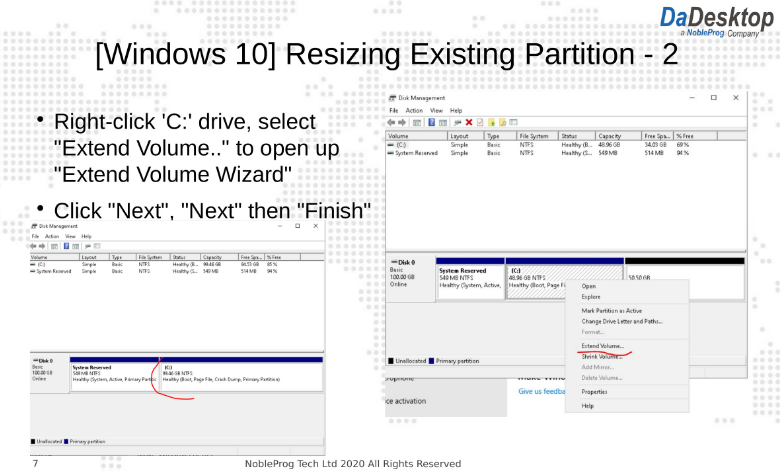
When using custom OS templates, you may need to manually extend the partition(s); follow the instructions provided below.
To extend partitions on custom OS templates and AlmaLinux standard templates, follow these steps
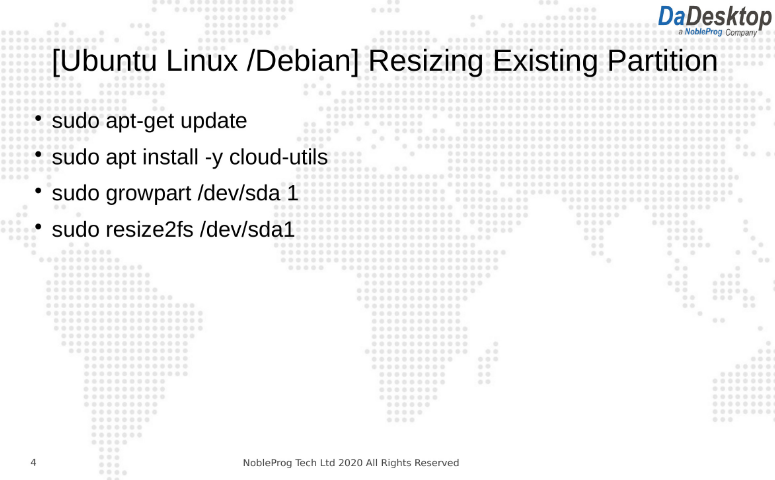
Follow the steps below to modify your desktop partitions
- Open a terminal or command prompt
- Enter the commands listed below