Deploying a New DaDesktop Server
Deploying a DD Node on GTHost / Hetzner Servers
These notes are here to guide you through deploying a DaDesktop Node (Server) on a GTHost, Hetzner, or a similar bare-metal Linux server in Portugal. Bear in mind that these instructions may evolve as the installation and deployment scripts are updated.
It’s assumed you’ve already purchased a server and plan to install Ubuntu Jammy 22.04. Keep in mind that RAID0 (striping) can boost disk performance if you have multiple disks with sufficient capacity. When using Hetzner, this configuration must be set up during the Rescue mode via the 'installimage' process.
Preparing and Installing the OS on a GTHost / Hetzner Server
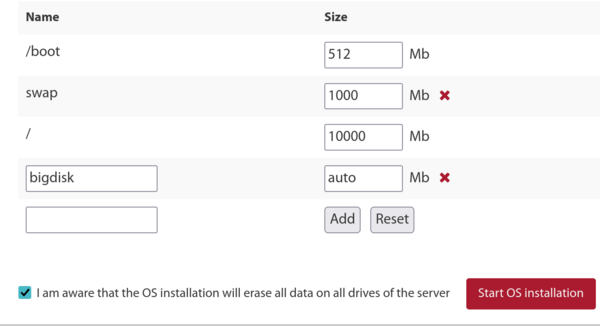
- Start by SSHing in with the provided root credentials. Run 'apt update' and 'apt upgrade' to bring all packages current, then use 'apt autoremove' to clear out any outdated or unnecessary packages before proceeding with further upgrades.
- If you're on Hetzner, you'll boot into rescue mode and need to specify distribution requirements, software RAID (mdm), xfs, IPv4, and so on before rebooting and upgrading. Typically, you can stick with the defaults for the small /boot and /boot/esp partitions—keep them as ext4 rather than xfs—and skip setting up a swap partition, as it isn't needed. Let the root (/) partition use xfs and consume all remaining disk space.
- When using LeaseWeb or another provider, you'll have to convert the root filesystem from ext4 or btrfs to xfs. The steps below offer general guidance, but configuring the / partition to use xfs is trickier than simply designating /bigdisk as xfs, because modifying the root filesystem type must happen outside the OS—it’s not something you can safely do while / is mounted.
-
To create an xfs filesystem, use the provider's tool if available—it’s far simpler. Otherwise, from the rescue system, you can run something like:
mkfs.xfs -f /dev/mdx (this formats / as xfs, and -f forces the overwrite).
Note: we no longer set up /bigdisk as a separate partition; it’s now just a directory under /. - Mount it as xfs using 'mount -t xfs /dev/mdX /' from outside the OS, or use the system portal to achieve the same.
- If you do create a separate /bigdisk partition (though this is now uncommon), add ‘defaults,nofail 0 0’ to /etc/fstab so the system can still boot even if that partition fails to mount.
- Run 'systemctl daemon-reload' so that systemd picks up the changes in /etc/fstab.
- Then 'mount -a' to verify the partitions are set up correctly, and confirm with 'df -T'.
-
Finally, reboot.
Running the DaDesktop Installation Script
- SSH into the server, e.g., svr@xxxxxxxxx
- Run the installation using the DaDesktop install script; that is,
- Fetch it by running: curl http://npg.io/d > d
- At this stage, the base OS should be upgraded from 22.04 to the latest Ubuntu release—currently 23.10 Mantic, which will soon be replaced by 24.04 Noble.
- The easiest approach is to use the update-os script found at /apps/dadesktop_npnode_deploy/modules/00-upgrade-os. This automates the process rather than doing the distribution upgrades manually, swapping the apt sources from jammy to mantic (nautic) so you can jump directly to the newer release in one step instead of several. Note: while skipping intermediate upgrades is generally discouraged, it’s safe here because very few packages are installed.
-
Should DNS issues arise during the distribution upgrade (as happened on one of our installations), you can resolve them by running:
rm /etc/resolv.conf ; echo "nameserver 8.8.8.8" > /etc/resolv.conf - Optionally, assign a hostname—for example, lo33uk.npg.io—if you want the DD node to have a specific identity, perhaps one that was previously configured. Reboot if needed to make the hostname take effect.
- Then execute the main script to install the DD Node. To guard against a dropped SSH connection during the upgrade, you might want to use tmux. Navigate to the directory where the script was downloaded and run ‘bash d’.
- Watch the on-screen log for any errors. During the script, the server’s IP address is automatically added to the NP access list, though it can take a minute or two for the whitelist cron job to refresh before you can proceed.
- Monitor the script’s progress and address or report any problems that appear.
- Run the cleanup script located at /apps/dadesktop_npnode_deploy/modules/00-cleanup. It removes many unneeded packages and downgrades others for a leaner system.
- Execute /apps/zabbix-agent/services/test-all.sh to verify there are no remaining issues.
- If any unmaintained packages remain, purge them with ‘apt purge xxx yyy’. Also clean up any broken symlinks that appear.
-
Then reboot and test everything.
Testing the DD Node After Installation
- Verify the new DD server entry in the DaDesktop GUI and run tests using the TPAPI and other tools.
- Set the start and expiry dates for the server within DaDesktop, and assign it to a datacenter if needed.
- Confirm the new server is operating correctly in Zabbix and resolve any issues that crop up.
- Test it by adding a Standalone instance to the server and starting it.
- If necessary, add the server to the appropriate datacenter.
- Optionally, configure billing rules for the new server if that’s required.
- Copy any needed operating system templates over to the server.
- If the server is earmarked for a specific course, notify the trainer or coordinator so they know to use it.
Enjoy!